Author Archives: alesk
Installing Standalone Oracle Http Server 12c (12.1.0.3) on Windows 2012 R2
We’re in the middle of replacing an old Fujitsu server running Windows 2003 R2, that was reliably humming for the last 6+ years, with the new one, running Windows 2012R2. One of the things that we decided to install on new server is Oracle Http Server 12c (12.1.0.3). Based on my previous experience, I knew I’ll have to deal with the crappy Oracle distribution of Apache Http server again. The only question was, is it possible to pack and distribute Apache Httpd in creepier form than before (11g), is it possible to surpass end user experience and joy installing and configuring Standalone Oracle Http Server 12c (12.1.0.3). Oracle, again, didn’t disappoint us ;-(. Let’s begin…
Download Oracle Http Server 12c (12.1.0.3) from edelivery.oracle.com:
->"Oracle Fusion Middleware"
->-> "Microsoft Windows x64 (64-bit)"
->->-> "Oracle Fusion Middleware 12c Media Pack"
->->->-> "Oracle Fusion Middleware 12c (12.1.3.0.0) HTTP Server for Microsoft Windows x64 (64-bit)" -- Part Number: V45207-01, 471MB
Unpack zip file and begin installation by running setup_fmw_12.1.3.0.0_ohs_win64.exe. Fortunately, Oracle Http Server 12.1.0.3 is certified on Windows 2012 R2, so you should be fine…here’re the screenshots from our installation:
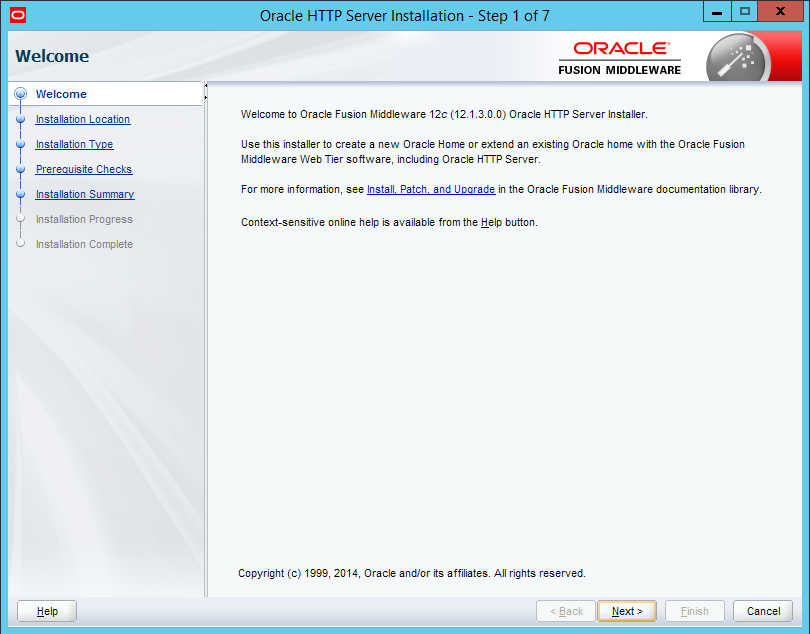
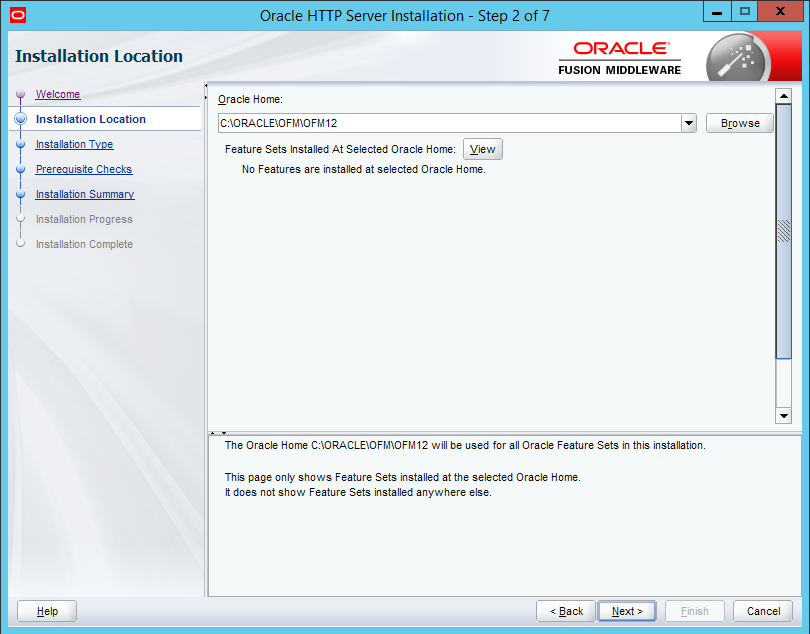
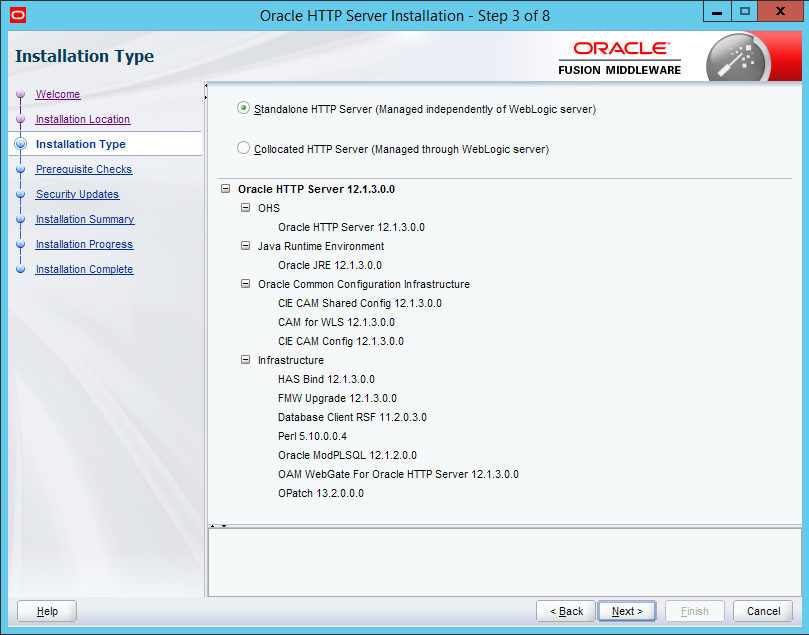
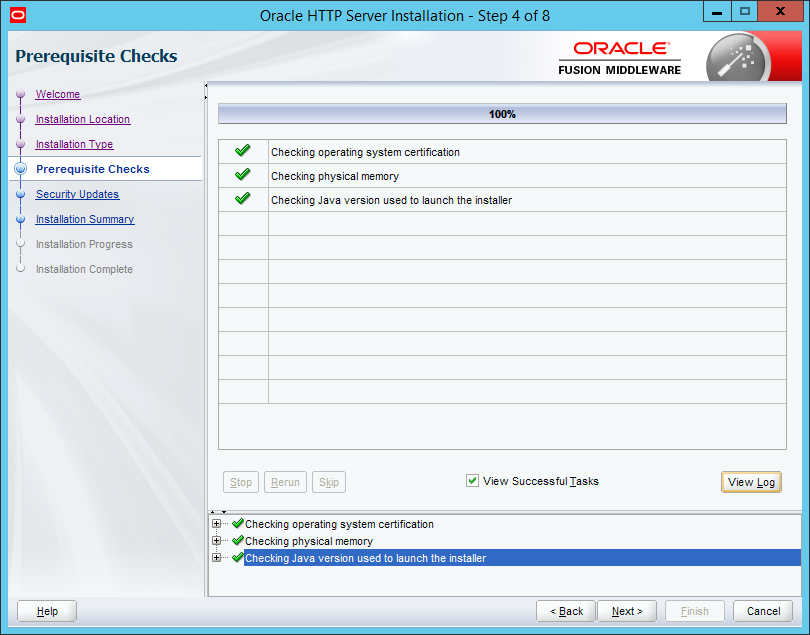
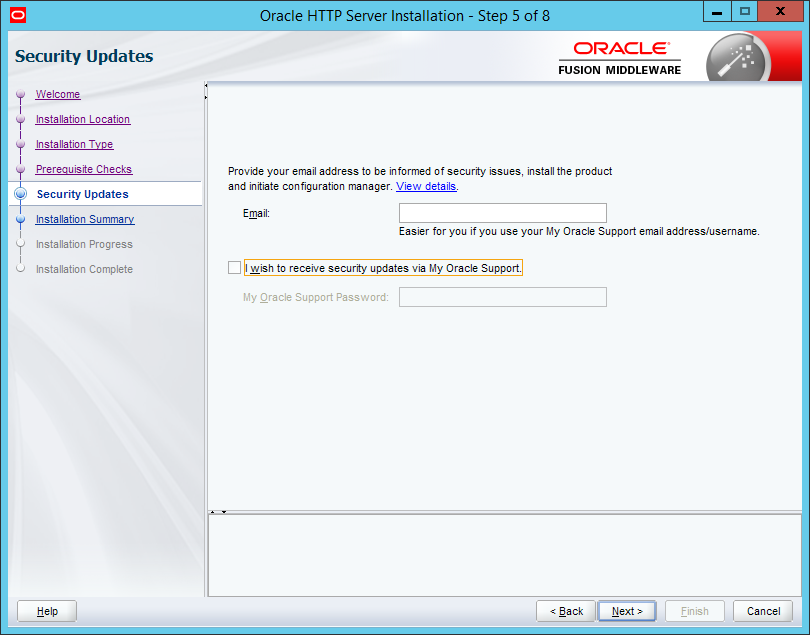
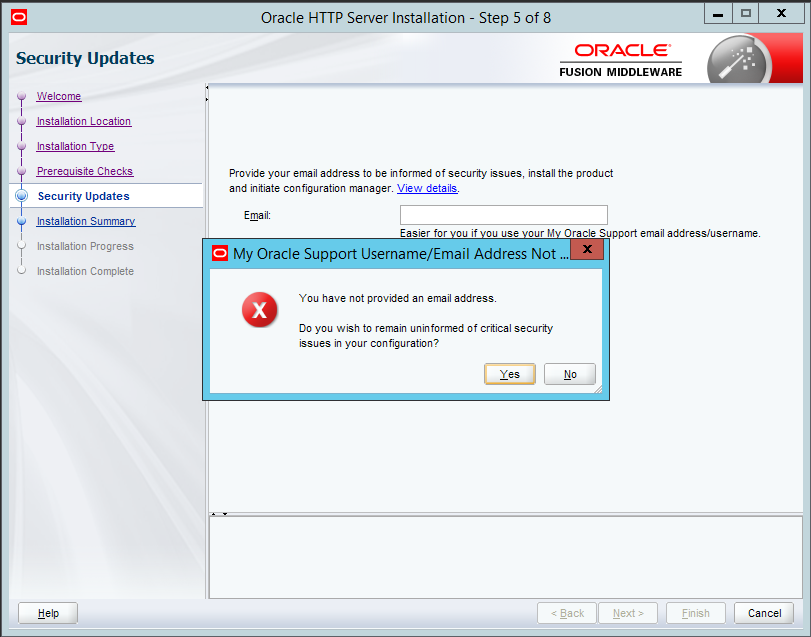
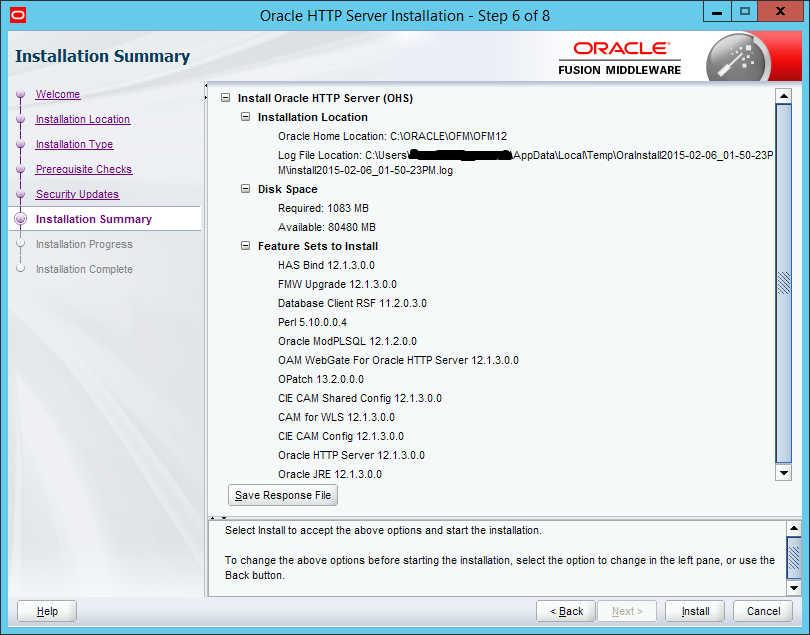
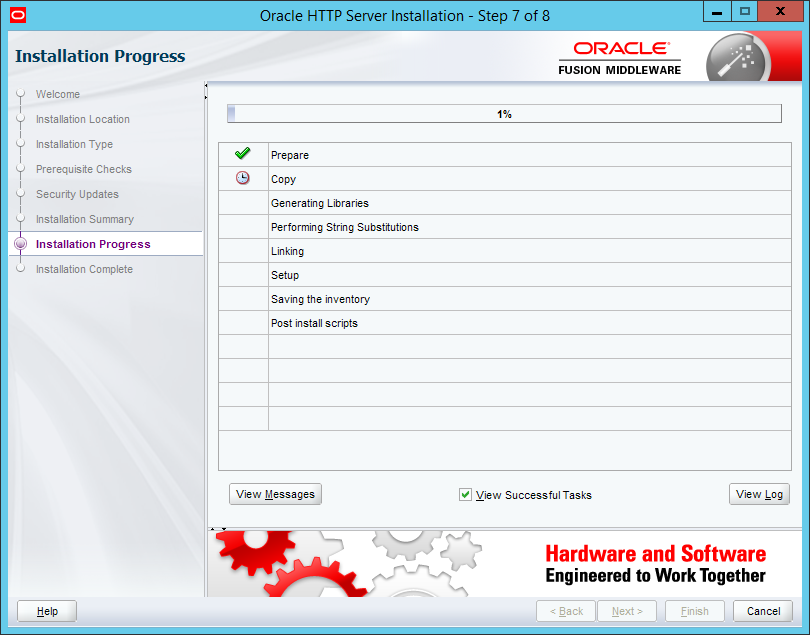
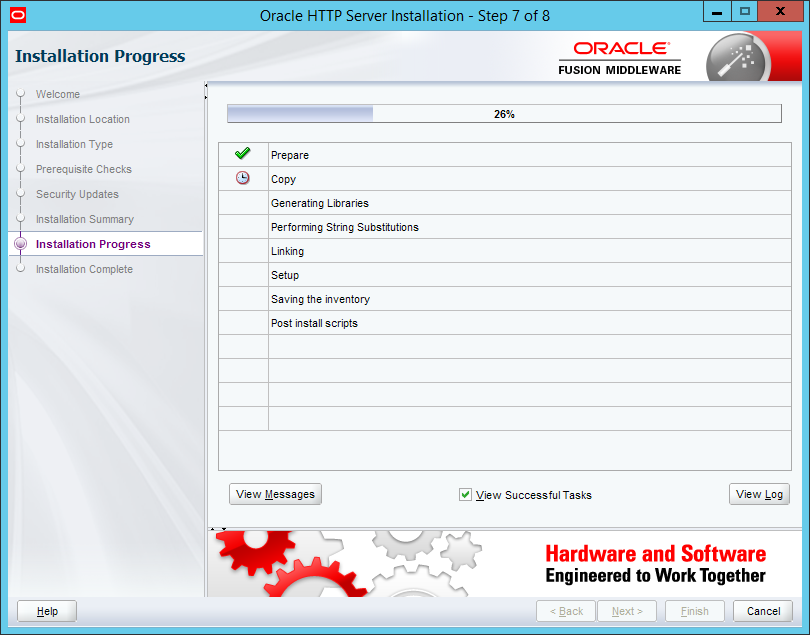
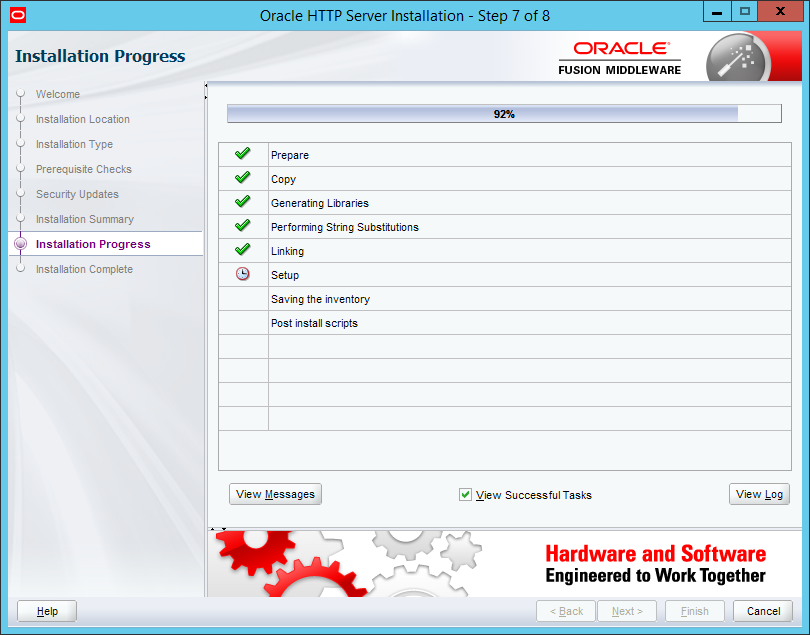
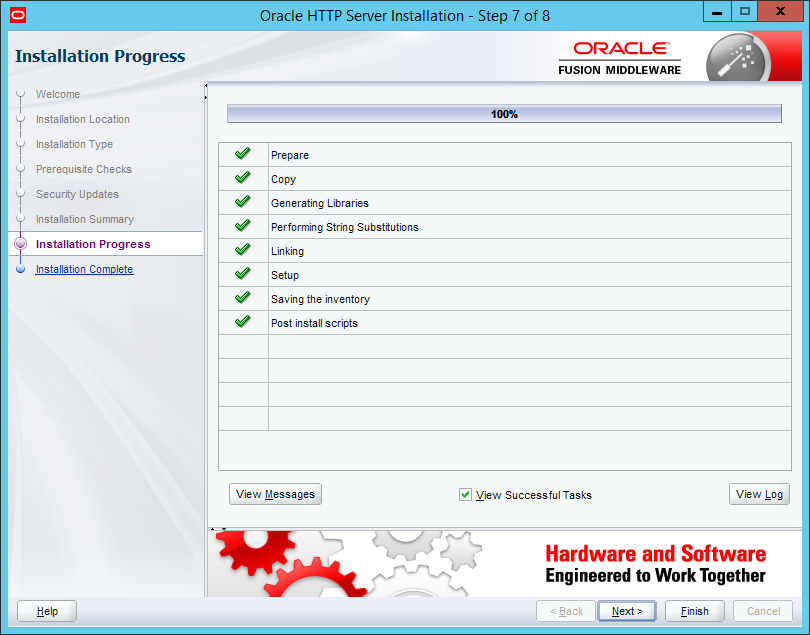
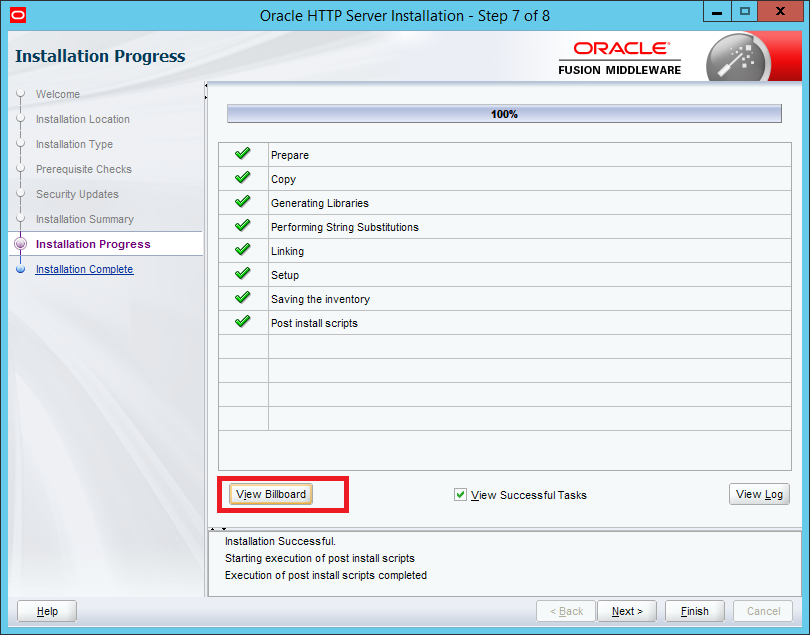
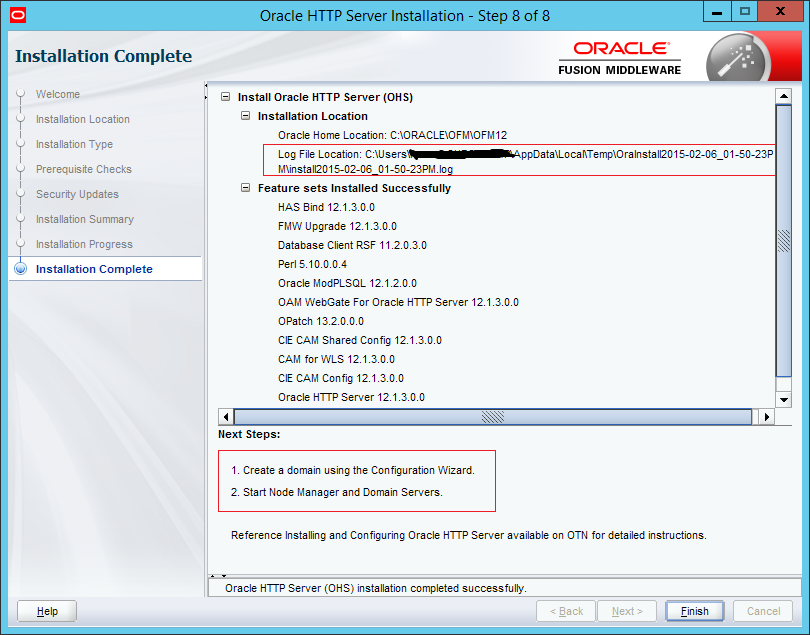
As you can see on the last screen, we’re not finished, we need to use Configuration wizard to create a “domain” and then start “Node Manager” and “Domain server”… — WTF — why we need to know anything about Weblogic Node Manager, Domain Servers, and other “weblogic parlance”…?? Oracle architects and developers, you should KISS more! ;-). Don’t forget, we’re talking about standalone Oracle Http Server which is not much more than minuscule Apache Httpd with some small proprietary code (mod_plsql…). Anyway, let’s continue…
Start configuration wizard (in our case it was located here: C:\ORACLE\OFM\OFM12\oracle_common\common\bin\config.cmd) and configure Oracle Http server in standalone mode…as you can see we left more or less everything at default:
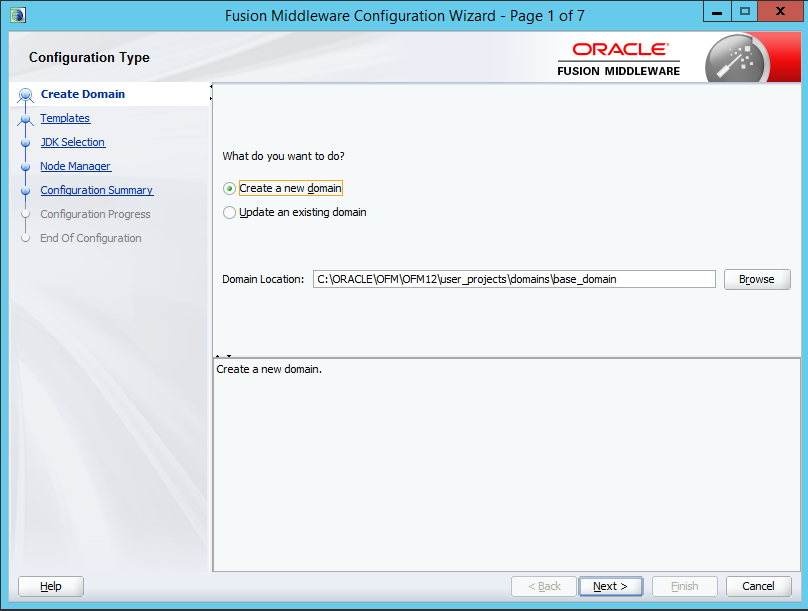
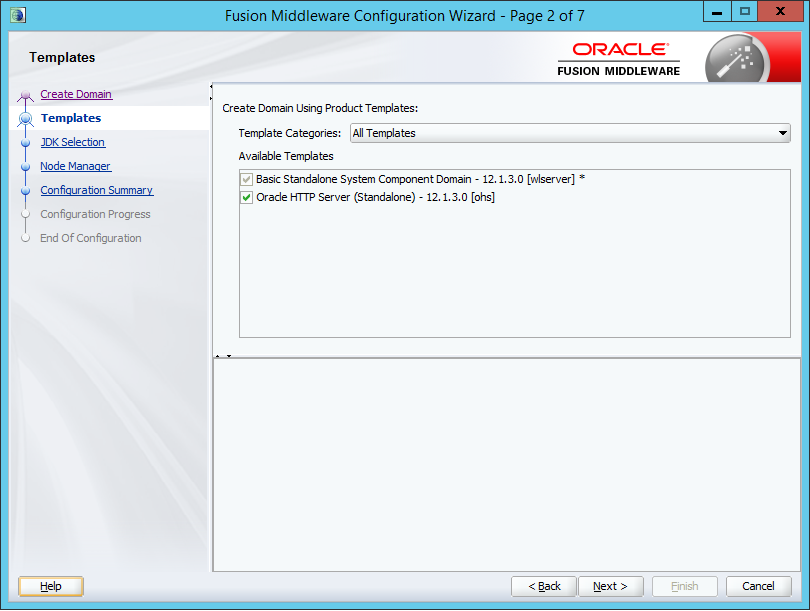
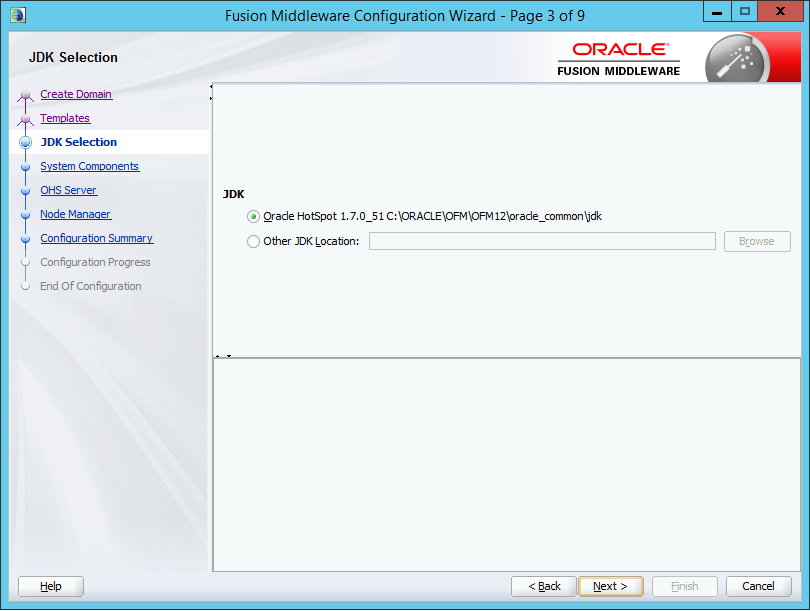
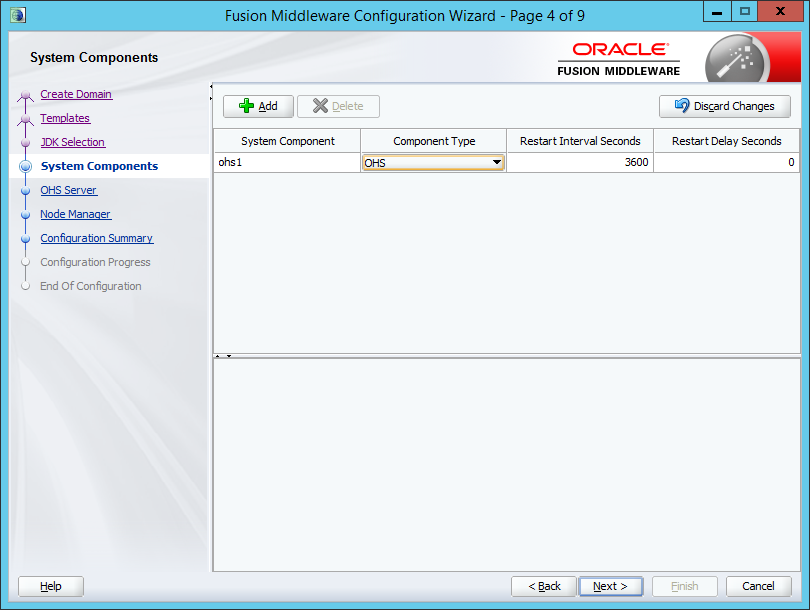
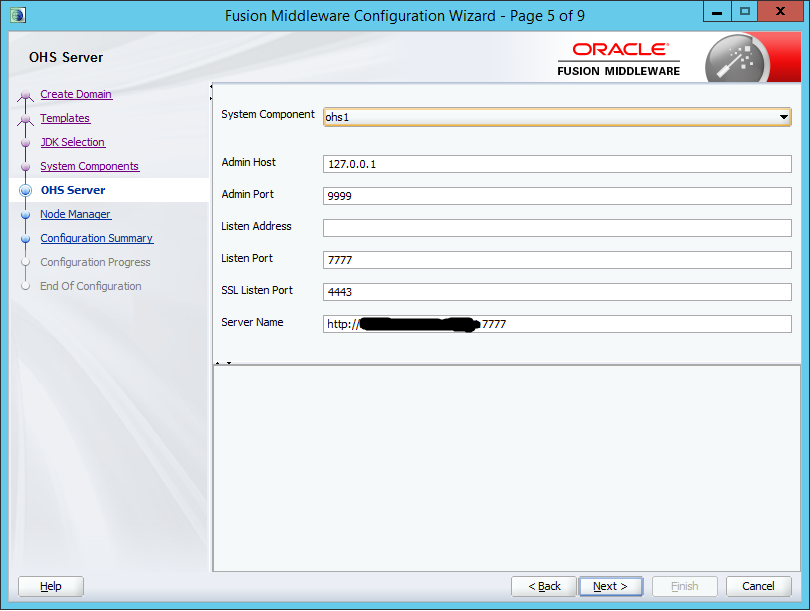
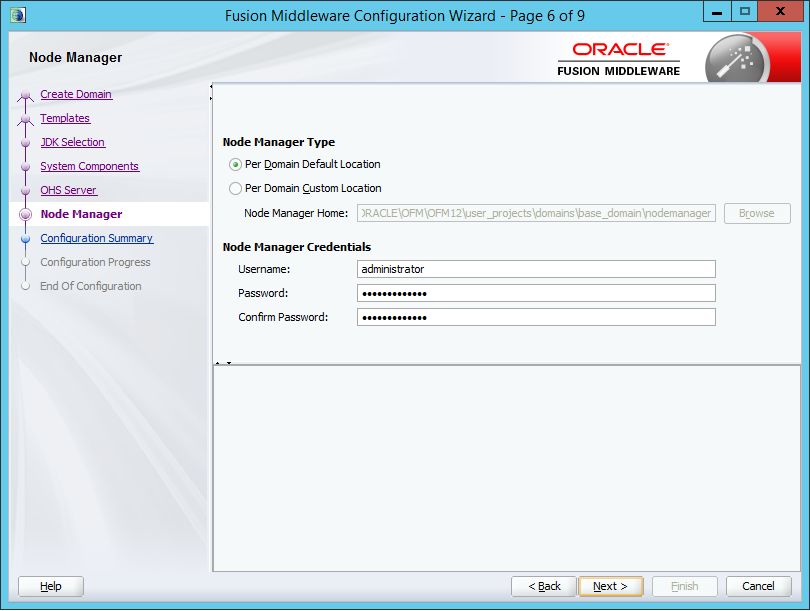
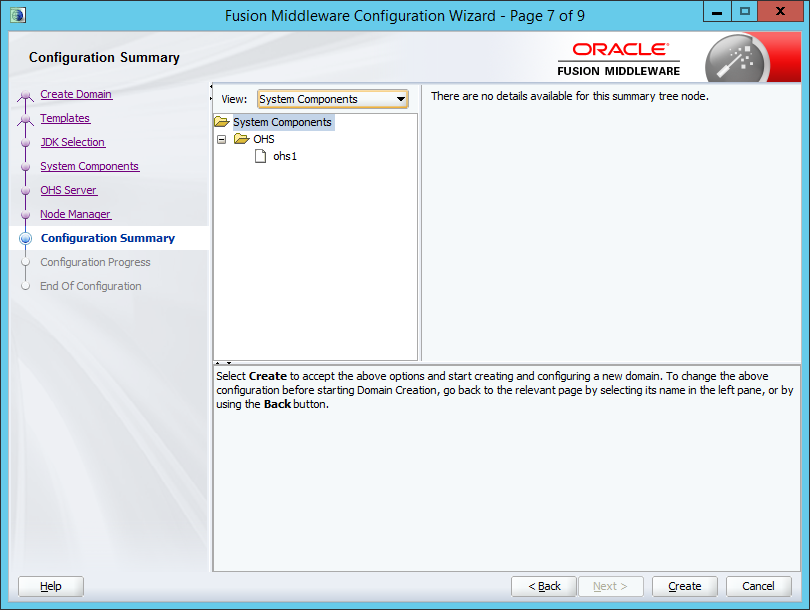
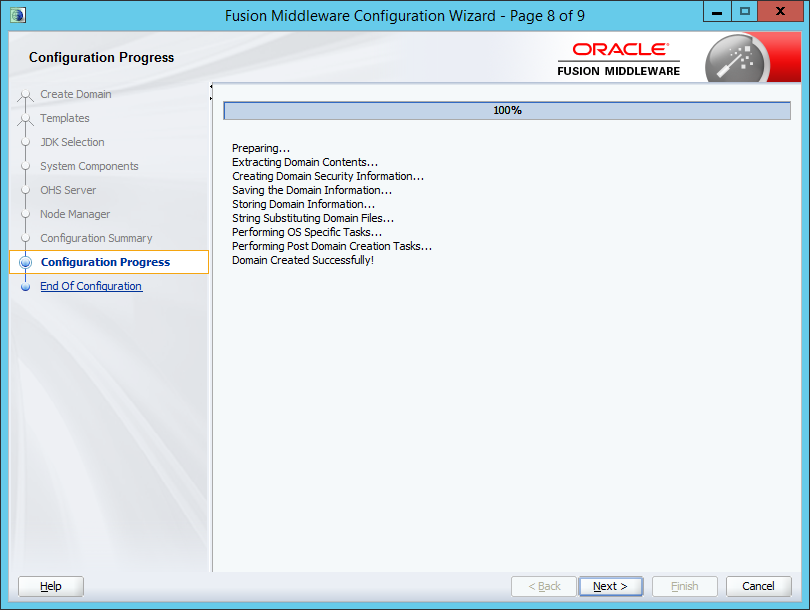
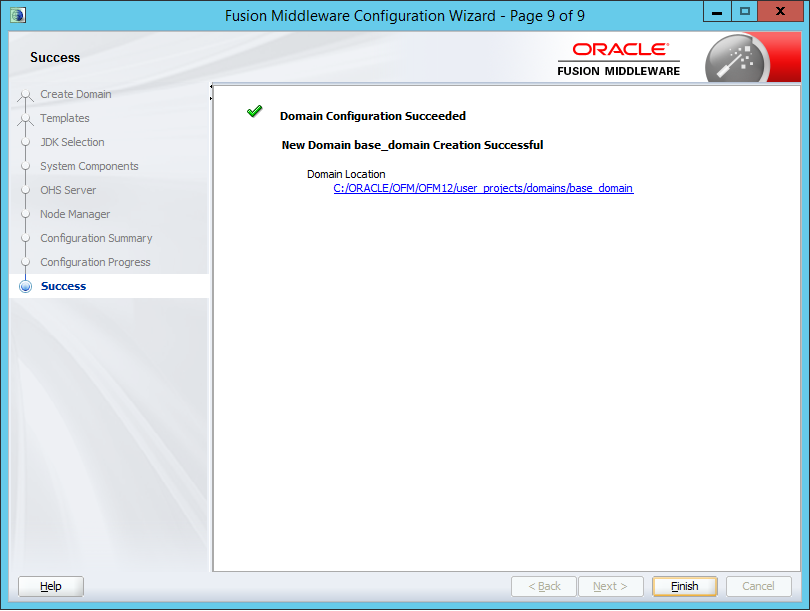
The fun is not over yet. Your journey to the wonderland of Oracle Http server just started. If you check “Services”, you’ll (of course) find nothing, because Oracle didn’t bother to do this during configuration, it’s up to you to create service for Node Manager.
Steps for creating Windows Service for Node Manager:
Note that we installed Oracle  HttpServer 12c in ORACLE_HOME: C:\ORACLE\OFM.

1) Open command prompt (cmd) wit "Run as Administrator"

set DOMAIN_HOME_BIN=C:\ORACLE\OFM\OFM12\user_projects\domains\base_domain\bin
set PATH=%DOMAIN_HOME_BIN%;%PATH%

installNodeMgrSvc.cmd

And if everything has gone well you should see a new service named the
Oracle way, like this:

"Oracle Weblogic base_domain NodeManager (C_ORACLE_OFM_OFM12_wlserver)"

with path to executable like this:

C:\ORACLE\OFM\OFM12\wlserver\server\bin\wlsvcX64.exe
The service is installed using the default Node Manager listen port (5556).
By default Node Manager Listens only on localhost.
If you’re not yet familiar with OracleHttp server you might think that starting Node manager will also start Oracle Http server you created previously – remember, after all, our main goal from the start is to run Http server. But no, Oracle product managers believes that you need to suffer a bit more….
You can START Oracle HttpServer 12c on command line with:
set DOMAIN_HOME_BIN=C:\ORACLE\OFM\OFM12\user_projects\domains\base_domain\bin
set PATH=%DOMAIN_HOME_BIN%;%PATH%
startComponent ohs1
You’ll be asked to enter password for the Node Manager which you entered on screen 6 of Oracle Fusion Middleware Configuration Wizard.
You can STOP Oracle HttpServer 12c on command line with:
set DOMAIN_HOME_BIN=C:\ORACLE\OFM\OFM12\user_projects\domains\base_domain\bin
set PATH=%DOMAIN_HOME_BIN%;%PATH%
stopComponent ohs1
If you want to avoid entering password each time you start OHS, you can ask Oracle to save the password in local encrypted file with parameter storeUserConfig:
set DOMAIN_HOME_BIN=C:\ORACLE\OFM\OFM12\user_projects\domains\base_domain\bin
set PATH=%DOMAIN_HOME_BIN%;%PATH%
startComponent.cmd ohs1 storeUserConfig

Creating the key file can reduce the security of your system if it is not kept in a secured location after it is created. Creating new key...
The username and password that were used for this WebLogic NodeManager connection are stored in C:\Users\alesk.ACME\.wlst\nm-cfg-base_domain.props and C:\Users\alesk.ACME\.wlst\nm-key-base_domain.props.
Connecting to Node Manager ...
Successfully Connected to Node Manager.
Starting server ohs1 ...
Successfully started server ohs1 ...
Successfully disconnected from Node Manager.
What if you want to change username and password that is used to authenticate to Node Manager which we entered in step 6 of Configuration Wizard?
Checkout MOS note 1945039.1 “How to Change the Node Manager Username and Password for Oracle HTTP Server 12c in a Standalone Domain”
Basically what we did was:
1) Stop Http Server and Node Manager

C:\ORACLE\OFM\OFM12\oracle_common\common\bin>stopComponent ohs1

Open cmd with "Run as Administrator" and stop NodeManager service:

net stop "Oracle Weblogic base_domain NodeManager (C_ORACLE_OFM_OFM12_wlserver)"

2) Invoke WLST offline:

C:\ORACLE\OFM\OFM12\oracle_common\common\bin>wlst.cmd

Initializing WebLogic Scripting Tool (WLST) ...

Welcome to WebLogic Server Administration Scripting Shell

Type help() for help on available commands

wls:/offline>

3) Read in the domain (make sure you type / and not \ in the path!!)

wls:/offline> readDomain('C:/ORACLE/OFM/OFM12/user_projects/domains/base_domain')

4) Get the security MBean (Mr. Bean?):

wls:/offline/ohs_domain> cd('/SecurityConfiguration/base_domain')

5. We changed the NM user name, but you can skip this, if you only want to change the password:

wls:/offline/base_domain/SecurityConfiguration/base_domain>set('NodeManagerUsername','<new_NM_Username>')

...and my command was:

wls:/offline/base_domain/SecurityConfiguration/base_domain>set('NodeManagerUsername','weblogic')

6. We also changed NM password. In our case the encrypted password was stored in
   C:\ORACLE\OFM\OFM12\user_projects\domains\base_domain\config\nodemanager\nm_password.properties.

wls:/offline/base_domain/SecurityConfiguration/base_domain>set('NodeManagerPasswordEncrypted','oursecretpassword')
wls:/offline/base_domain/SecurityConfiguration/base_domain>updateDomain()
wls:/offline/base_domain/SecurityConfiguration/base_domain>closeDomain()
wls:/offline/base_domain/SecurityConfiguration/base_domain>exit()

7. Start Node Manager Service

net start "Oracle Weblogic base_domain NodeManager (C_ORACLE_OFM_OFM12_wlserver)"

8. Start OHS

C:\ORACLE\OFM\OFM12\user_projects\domains\base_domain\bin> startComponent ohs1

If you already stored your password in a key store you have to delete cached key store file
(check your user profile directory) before restarting OHS component!
And finally, let’s see where’re the config files for httpd and mod_plsql. According to Oracle Http 12c documentation there’re runtime and staging config files and we should always edit staging config files.
In our example the config file locations are (note that marvel.conf was created by us):
Domain home bin        : C:\ORACLE\OFM\OFM12\user_projects\domains\base_domain\bin
httpd.conf             : C:\ORACLE\OFM\OFM12\user_projects\domains\base_domain\config\fmwconfig\components\OHS\ohs1
marvel.conf (mod_plsql): C:\ORACLE\OFM\OFM12\user_projects\domains\base_domain\config\fmwconfig\components\OHS\ohs1\mod_plsql\marvel.conf
include for marvel.conf: C:\ORACLE\OFM\OFM12\user_projects\domains\base_domain\config\fmwconfig\components\OHS\ohs1\moduleconf\plsql.conf
There is also a WLST tool (wlst.cmd) that allow us to manipulate with running OHS. Let’s see…
Using WLST to control OHS:
Open WLST C:\ORACLE\OFM\OFM12\oracle_common\common\bin\wlst.cmd:

Initializing WebLogic Scripting Tool (WLST) ...

Welcome to WebLogic Server Administration Scripting Shell

Type help() for help on available commands

wls:/offline> nmConnect('weblogic','mysecretpassword','localhost','5556','base_domain','C:/ORACLE/OFM/OFM12/user_projects/domains/base_domain','ssl')

// status
wls:/nm/base_domain> nmServerStatus(serverName='ohs1', serverType='OHS')

RUNNING

// soft restart
wls:/nm/base_domain> nmSoftRestart(serverName='ohs1', serverType='OHS')

// stop OHS
wls:/nm/base_domain> nmKill(serverName='ohs1', serverType='OHS')
Killing server ohs1 ...
Successfully killed server ohs1

// status
wls:/nm/base_domain> nmServerStatus(serverName='ohs1', serverType='OHS')

SHUTDOWN

// start
wls:/nm/base_domain> nmStart(serverName='ohs1', serverType='OHS')
** Edit March 2017 **
I needed a user friendly cli interface for controlling the OHS via “wlst.cmd” scripting environment for my client the other day and since wlst is controlled by Jython it was trivial to write simple python script that offers menu for basic actions, like start, stop and status.
# controlOHS.py
# Usage:
# C:\ORACLE\OFM\OFM12\oracle_common\common\bin\wlst.cmd  controlOHS.py
#
pwd = None
nmConnect('administrator',pwd,'localhost','5556','base_domain','C:/ORACLE/OFM/OFM12/user_projects/domains/base_domain','ssl')

def menu():
   print("")
   print("Available commands:")
   print("==========================================")
   print("1) softRestart     ....soft restart of OHS")
   print("2) stopOHS         ....stop OHS server")
   print("3) startOHS        ....start OHS server")
   print("4) statusOHS       ....status of OHS server")
   print("5) help            ....print this help")
   print("6) Exit            ....exit")
   print("==========================================")
   print("")

def softRestart():
   print("Soft restart...")
   nmSoftRestart(serverName='ohs1', serverType='OHS')

def stopOHS():
   print("Stop OHS....")
   nmKill(serverName='ohs1', serverType='OHS')

def startOHS():
   print("Start OHS...")
   nmStart(serverName='ohs1', serverType='OHS')

def statusOHS():
   print("Status...")
   nmServerStatus(serverName='ohs1', serverType='OHS')

while 1:  # endless loop
   menu()
   command = raw_input("Command [1..6]: ")

   if command == "1":
	  softRestart()
   elif command == "2":
	  stopOHS()
   elif command == "3":
	  startOHS()
   elif command == "4":
      statusOHS()
   elif command == "5":
	  menu()
   elif command == "6":
	  break
   else:
      print("Invalid choice!")

   raw_input("Press Enter to continue...")
SQLPLUSW.EXE – The king is dead, long live the king!
Hands down, an old “GUI” version of Oracle SQL*Plus (sqlplusw.exe) which was available only on Windows, was always a bit awkward to use compared to a command line version of the same tool. Nevertheless, it was GUI version of the SQL*Plus that I was using most often for ad hoc access to database. Despite of obvious shortcomings in the area of command line history and editing, it felt familiar environment to many developers and DBA’s and now that it’s gone forever with the release of Oracle 11g, I thought I would prepare a “replacement” that will somehow visually resemble old tool but also bring some goodies not available in sqlplusw.exe.
First thing that we need to do, is to correctly setup environment. Since I’m using Windows 7 with regional settings for Slovenia and with Oracle NLS_LANG=SLOVENIAN_SLOVENIA.EE8MSWIN1250, it means that I can not simply create a shortcut to sqlplus.exe, because command line version of sqlplus.exe is not able to deal with code page CP1250. Before we run sqlplus.exe we need to change NLS settings to NLS_LANG=SLOVENIAN_SLOVENIA.EE8PC852 (or whatever MS DOS codepage variant you’re using in your country for Window command line). This “limitation” in particular was the #1 reason for sticking with sqlplusw.exe all those years and since “MS DOS” LATIN 2 codepage (CP852) is a subset of CP1250 it means that we must be aware that some characters can’t be displayed. For example euro symbol (€) is not supported by CP852, you won’t see properly € character and whenever you’ll want to insert € you must do it with Oracle function CHR(128) instead of typing € on keyboard — otherwise the character will be lost during client-server characterset translation. The simplest approach is to prepare a “special” launch script just for sqlpluse.exe, here is mine (saved in E:\Oracle):
@echo off
::
:: RunSQLPlus.cmd
::
title ORA11 x64
SET ORACLE_HOME=E:\ORACLE\ORA11P3
SET PATH=%ORACLE_HOME%\BIN;%PATH%
SET SQLPATH=E:\ORACLE\scripts
SET NLS_LANG=SLOVENIAN_SLOVENIA.EE8PC852
cmd /k sqlplus /nolog
Now we can create shortcut to this batch file, of course with legendary icon;-)


By default we have a boring sqlplus command prompt window. Let’s change some properties, open context menu of the window, then “Properties”. Make sure both “Quick Edit Mode” and “Insert mode” are checked, also increase “Buffer Size” size from 50 to something bigger, like 200.
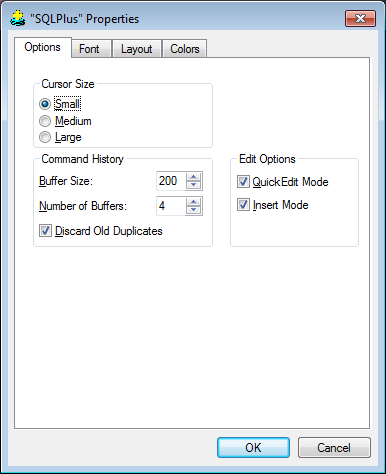
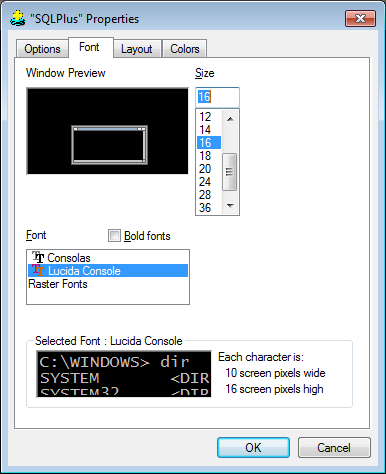
On the next tab select font of your choice, my favorite font is “Lucida Console”, size 16.
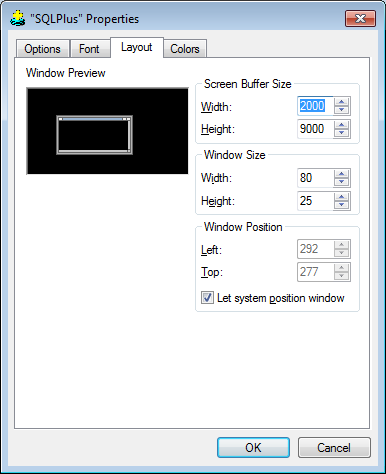
On the “Layout” tab increase “Screen Buffer Size” and if you don’t like 80 x 25 character sized default window, change the proportion to something else.
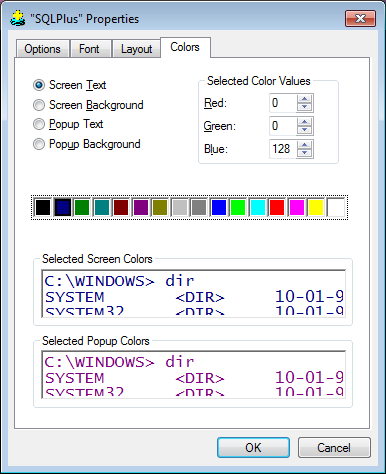
On the “Colors” tab pick a color of your choice, since I want to achieve the look of old GUI sqlplusw I changed background to white and treated myself with a blue color for text, something I could not do in GUI variant.
Let’s close (and save changes) and again launch sqlplus to see the changes…

This is much better. The last tidbit of tweaking our new “king” is making SQL*PLus display customized sql prompt with user and database that we’re connected to. If you recall cmd batch script from above you’ll see SQLPATH pointing to E:\ORACLE\scripts. In this directory create your customized login.sql script, like this one:
-- login.sql
host title &_user@&_connect_identifier
set sqlprompt "&&_USER@&&_CONNECT_IDENTIFIER~SQL> "
set linesize 2000
set pagesize 500
set truncate on
This script will properly set both sqlplus prompt as well as title of the command line window to reflect user and db to which we’re connected. Even if command prompt is in minimized state on taskbar, we can easily determine to which database we’re connected by hovering mouse pointer over the icon.
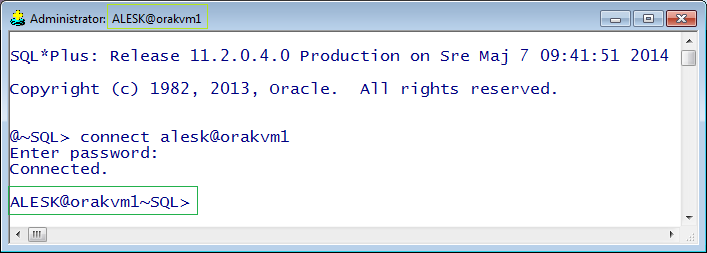
And finally, I would again like to warn about properly setting up NLS_LANG environment variable (in my case to MS DOS Latin 2 codepage), otherwise you’ll end up with data corruption due to incorrect code page conversion between the client and server.
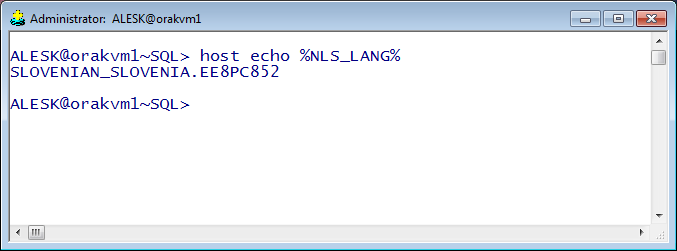
That’s pretty much all. One thing that you must be extra careful about is when you just want to use sqlplus to run some script written in Notepad/Notepad++ (written likely in cp1250 in CE region) in which case you should run sqlplus.exe with EE8MSWIN1250 settings. The instructions above are targeted to interactive ad-hoc querying.
Even if you’re a die-hard user of sqlplusw it’s just a question of time when you’ll appreciate the benefits of cmd.exe:
- Arrows Up and Down allow you to navigate between the commands in the buffer
- Arrows Left and Right allows you to navigate inside current command line
- F7 brings a menu with commands in the buffer. Select and press Enter to execute the command line selected, or Select and Right Arrow to put the selected line on the command prompt where you can edit it
- F8 allows you to search command line buffer. For example start writing your query, then press F8 and cmd will try to pull the line from the buffer.
Installing Windows 8.1 as VirtualBox Guest (Error 0x000000C4)
A short reminder to myself of what to do to prepare VirtualBox guest VM for Windows 8.1 (or Windows Server 2012 R2) installation:
Determine VM name dedicated to Windows 8.1 installation:

cmd> "c:\Program Files\Oracle\VirtualBox\VBoxManage.exe" list vms

"WIndows8-64" {2962e10b-2168-4d0c-b4b0-b9b104b66661}

Turn on CMPXCHG16B CPU property for VM:
"c:\Program Files\Oracle\VirtualBox\VBoxManage.exe" setextradata "WIndows8-64" VBoxInternal/CPUM/CMPXCHG16B 1
Installing Cisco AnyConnect Client 3.1 on Fedora 20
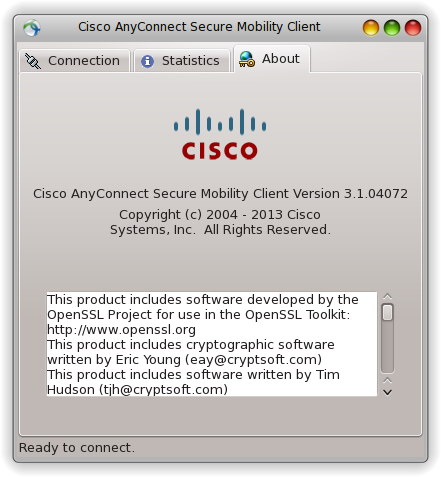
This is a short memo about installation of “Cisco AnyConnect Secure Mobility Client 3.1” on my Fedora 20 (KDE) powered laptop. Although Fedora is officially not supported I didn’t find any glitches so far running Cisco vpn client on my laptop.
$ uname -r
3.13.6-200.fc20.x86_64

$ sudo yum install pangox-compat.x86_64  // prerequisite!

$ tar -xvzf anyconnect-predeploy-linux-64-3.1.04072-k9.tar.gz

$ cd anyconnect-3.1.04072/vpn

$ sudo ./vpn_install.sh

// Start Cisco vpn applet with:
$ /opt/cisco/anyconnect/bin/vpnui
Java 7 update 51 and broken Raritan KVM console
We’re surprised by broken Raritan KVM console (Java application) on some of our workstations, mine included. We could login to the Raritan KVM (Dominion KX II), but could not open console to any server. We’re always greeted with the error:
Error while getting the list of open Targets, please try again in a few seconds.
First we upgraded Raritan firmware to the latest one (2.5.0.5.886), but the error was still there. The next suspect was Java itself. I noticed that coworkers working with older version of JRE does not have the problem…and to make long story short, we finally found explanation for new “security feature” introduced in Java 7 U51, a quote from Oracle release notes:

Since Dominion KVM server applet is not signed the JRE will block the app by default. The solution is to add url to Raritan KVM server to the exception list.
First, make sure that you open correct (the latest) Java Control Panel, this is especially important if you happen to have more than one JRE/JDK on your machine, because you won’t find the “Exception Site List” in older Java Control Panel. In my case (Windows7, x64) the best approach is to manually find the executable:
C:\Program Files (x86)\Java\jre7\bin\javacpl.exe
Then check the version:

Add url to exception list:


 dbaportal.eu
You must be logged in to post a comment.