Author Archives: alesk
Using Python With Oracle 11g
Oracle has published two tutorials on Oracle Learning Library that covers python and Oracle RDBMS. The first tutorial, Using Python With Oracle Database 11g is a short introduction on basic python/Oracle idioms. Examples will not make you an instant python/Oracle hacker, but nevertheless tutorial covers all major cx_Oracle methods.
The title of second tutorial,Using the Django Framework with Python and Oracle Database 11g, speaks for itself if you’re web programmer.
Nano on Windows x86/x64
My favorite port of OpenSSH for Windows OS is CopSSH, basically I’m running CopSSH more or less on every production Windows server. One bugger so far was the lack of decent terminal editor that would work out of the box after CopSSH installation. Recently, I started to consolidate different versions of CopSSH (the oldest being 1.4.6) and was happy when I discovered that my favorite editor on Linux, nano 2.2.6, works fine under cygwin environment that ships with the latest CopSSH 4.0.2. All that you need to do is to:
- download and install CopSSh from Copssh_4.0.2_Installer.zip
- download and install Control Panel update from ICW_COPSSHCP_2.0.3_installer.zip
- download nano-2.2.6.zip
- copy nano.exe from nano-2.2.6.zip archive to CopSSH bin directory, for example copying nano.exe from my local machine to Windows x64 server with scp:
scp nano.exe alesk@winbox:"/cygdrive/c/Program\ Files\ \(x86\)/CopSSH/bin"
That’s it. You can now edit text files without the need to bypass (with WinSCP for example) ssh terminal session just for the sake of editing some configuration file.
Nano doesn’t work with older releases of cygwin that ships with CopSSH (for example on 1.4.6) due to the version mismatch of cygwin1.dll library. I didn’t bother to look for a workaround, since my objective is to deploy the latest version of CopSSH anyhow.
How to install and use vpnc to connect to Cisco VPN concentrator
Even though I managed to install Cisco VPN client 4.8 on my Ubuntu (Lucid Lynx) workstation, I was not successful at troubleshooting the connection attempt to our corporate Cisco VPN concentrator. Each attempt of mine to establish VPN connection, ended in greeting with the error message:
Secure VPN Connection terminated locally by the Client
Reason: Failed to establish a VPN connection.
There are no new notification messages at this time.
I almost gave up my hopes to use Ubuntu for VPN, fortunately, I recently met an Oracle DBA (Igor@3Gen), who told me that he’s is successfully using vpnc to connect to the same Cisco VPN concentrator as I am.
He was kind (thanks Igor!) to share his notes on the subject. This is my resume of steps that I followed to install and configure vpnc (of course, some technical details are obfuscated).
Step 1) Install vpnc and Gnome GUI plugin for network manager
--
-- Install vpnc
--
$ sudo apt-get install vpnc
$ sudo apt-get install network-manager-vpnc
$ sudo apt-get install network-manager-vpnc-gnome
Step 2) Extract group password from Cisco client pcf file
Until now, I was using Cisco VPN client on Windows 7, that was packed and delivered to me by our corporate VPN support team. My Cisco VPN client (v5.0.02.0090) already included the necessary profiles (*.pcf files) with the configuration data. Profile configuration files are usually located in C:\Program Files\Cisco Systems\VPN Client\Profiles.
If you open your pcf file you’ll find (among other data) encrypted group password in the field !enc_GroupPwd. This is a pre-shared secret that we first need to decrypt it and then use it in our vpnc configuration file. Hopefully, this is not hard with the tools that exists on the net.
--
-- 2.1 Prepare working directory
--
$ mkdir vpnc
$ cd vpnc
--
-- 2.2 Install cisco-decrypt from source file
--
$ wget http://www.unix-ag.uni-kl.de/~massar/soft/cisco-decrypt.c
$ sudo apt-get install libgcrypt11-dev
$ export PATH=.:$PATH
$ gcc -Wall -o cisco-decrypt cisco-decrypt.c $(libgcrypt-config --libs --cflags)
--
-- 2.3 Check that cisco-decryp was built
--
alesk@dbaportal:~/vpnc$ ls -l cisco-decrypt
-rwxr-xr-x 1 alesk dba 7850 2010-12-04 18:04 cisco-decrypt
--
-- 2.4 Download pcf2vpnc
--
$ wget http://svn.unix-ag.uni-kl.de/vpnc/trunk/pcf2vpnc
$ chmod +x pcf2vpnc
--
-- 2.5 Copy your .pcf file from Windows client to our vpnc working directory
-- on ubuntu (let's say that our pcf file is called acme-vpn.pcf)
--  and run pcf2vpnc against our pcf file.
--
$ ./pcf2vpnc acme-vpn.pcf > acme-vpnc.conf
At this stage we have decrypted group password in acme-vpnc.conf.
[Note: there is a site that can decrypt Cisco group password for you. Personally, I prefer relying on my own tools, that’s why I compiled my own decryption tool.]
Step 3) Setup vpnc configuration file (/etc/vpnc/ACME-vpn.conf)
Use your favorite editor to create your vpnc configuration file…
$ sudo nano /etc/vpnc/ACME-vpn.conf
Then add the following lines:
IPSec gateway nnn.nnn.nnn.nnn
IPSec ID ACMEID
IPSec secret  fkvmdn34&3ldcmvnsbj#4%gB
Xauth username alesk@pda-acme
Where:
- nnn.nnn.nnn.nnn — is IP address of VPN gateway (!Host variable in pcf file). It’s recommended that you use IP instead of fully qualified domain name for the gateway, to avoid problem of resolving DNS to IP!
- IPSec ID — is group name (!GroupName variable in pcf file)
- IPSec secret — is group password, originally encrypted in pcf file as !enc_GroupPwd variable. You must enter decrypted version of the password that you’ll find in vpnc configuration file generated in step 2.5
- Xauth username — username for authentication (Username variable in pcf file)
Step 3) Modify firewall rules to allow VPN connection
Use your favorite editor to edit firestarter user-pre file to add some iptables rules:
$ sudo nano /etc/firestarter/user-pre
Add the following lines (replace nnn.nnn.nnn.nnn with the Cisco VPN gateway IP):
iptables -A INPUT -j ACCEPT -s nnn.nnn.nnn.nnn -p esp
iptables -A INPUT -j ACCEPT -s nnn.nnn.nnn.nnn -p udp -m multiport –sports isakmp,10000
iptables -A INPUT -j ACCEPT -i tun+
iptables -A OUTPUT -j ACCEPT -d nnn.nnn.nnn.nnn -p esp
iptables -A OUTPUT -j ACCEPT -d nnn.nnn.nnn.nnn -p udp -m multiport –dports isakmp,10000
iptables -A OUTPUT -j ACCEPT -o tun+
Restart your firewall:
alesk@dbaportal:~$ sudo service firestarter restart
 * Stopping the Firestarter firewall...                                  [ OK ]
 * Starting the Firestarter firewall...                                  [ OK ]
Step 4) Test vpnc connection
You can start VPN connection either on the command line or with a GUI (Networker). To start VPN on a command line open Terminal and run:
$ sudo vpnc --natt-mode cisco-udp ACME-vpn
You’ll be first asked to provide password for the sudo, then you’ll be asked for the VPN password. After that you should see the standard welcome banner from your VPN provider. From this point onwards you have working VPN connection, you can open Terminal Service client and connect to your Windows workstation at work or whatever you want to do.
When you wish to close VPN connection simply run the following command in terminal window:
$ sudo vpnc-disconnect
Configuring VPN connection with GUI using Network Manager:
If you prefer to work with a GUI network manager you can setup vpnc connection with plugin that was installed in step 1. Here are some screenshots (let’s say I want to configure ACME-vpn-2 connection):
1) Open network manager (up and down arrow at the left)

2) Select “VPN connections”, then “Configure VPN”
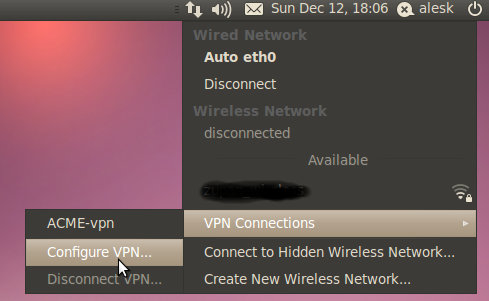
* Don’t be confused by existing ACME-vpn, this is vpn that I already created.
3) Click on Add button to setup new VPN connection

4) From combo box select “Cisco Compatible VPN (vpnc)”

5) Fill the VPN tab with VPN data according to your setup

6) Also select IP4 tab and select “Automatic (VPN) addresses only
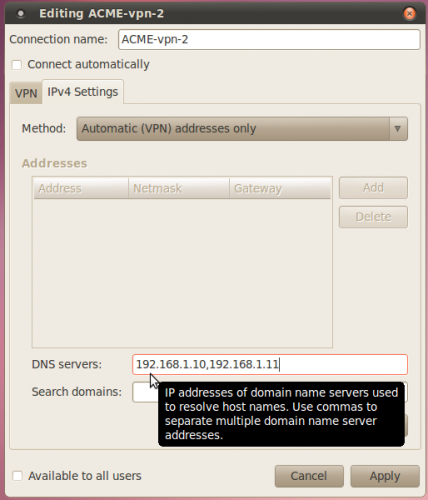
* Optionally enter (internal – inside VPN) DNS addresses.
Now, you can connect/disconnect from VPN by simply selecting VPN connection from Network Manager GUI.
How to install Cisco VPN Client on Ubuntu 10.04
Yesterday, I finally managed to install Cisco VPN client for Linux on my main home workstation, running Ubuntu 10.04. Though, I’m still troubleshooting connection issue with our service provider, I believe I’m one step further of true, Windows free workstation running on ASROCK mini.
Many thanks go to Ngo Ky Lam and his instructions HOW TO INSTALL CISCO VPN CLIENT ON UBUNTU JAUNTY JACKALOPE AND KARMIC KOALA 64 BIT, which are also valid for Lucid Lynx.
Here are the steps that I performed to install Cisco VPN Client 4.8.02.030:
--
-- Download VPN Client for Linux (4.8.02.030) from Cisco if you can,
-- since I don't have access to Cisco support site, I searched the web for the client package...
--
$ wget http://its.eiu.edu/software/vpnclient-linux-x86_64-4.8.02.0030-k9.tar.gz
$ tar xzvf vpnclient-linux-x86_64-4.8.02.0030-k9.tar.gz
--
-- Download and install patch from lamnk.com
--
$ cd vpnclient
$ wget http://www.lamnk.com/download/fixes.patch
$ alesk@dbaportal:~/vpnclient$ patch < ./fixes.patch
patching file frag.c
patching file interceptor.c
patching file IPSecDrvOS_linux.c
patching file linuxcniapi.c
patching file linuxkernelapi.c
patching file Makefile
--
-- Install VPN Client accepting all defaults
--
$ sudo ./vpn_install

Cisco Systems VPN Client Version 4.8.02 (0030) Linux Installer
Copyright (C) 1998-2006 Cisco Systems, Inc. All Rights Reserved.

By installing this product you agree that you have read the
license.txt file (The VPN Client license) and will comply with
its terms.

Directory where binaries will be installed [/usr/local/bin]

Automatically start the VPN service at boot time [yes]

In order to build the VPN kernel module, you must have the
kernel headers for the version of the kernel you are running.

Directory containing linux kernel source code [/lib/modules/2.6.32-25-generic/build]

* Binaries will be installed in "/usr/local/bin".
* Modules will be installed in "/lib/modules/2.6.32-25-generic/CiscoVPN".
* The VPN service will be started AUTOMATICALLY at boot time.
* Kernel source from "/lib/modules/2.6.32-25-generic/build" will be used to build the module.

Is the above correct [y]

Making module
make -C /lib/modules/2.6.32-25-generic/build SUBDIRS=/home/alesk/vpnclient modules
make[1]: Entering directory `/usr/src/linux-headers-2.6.32-25-generic'
  CC [M]  /home/alesk/vpnclient/linuxcniapi.o
  CC [M]  /home/alesk/vpnclient/frag.o
  CC [M]  /home/alesk/vpnclient/IPSecDrvOS_linux.o
  CC [M]  /home/alesk/vpnclient/interceptor.o
  CC [M]  /home/alesk/vpnclient/linuxkernelapi.o
  LD [M]  /home/alesk/vpnclient/cisco_ipsec.o
  Building modules, stage 2.
  MODPOST 1 modules
WARNING: could not find /home/alesk/vpnclient/.libdriver.so.cmd for /home/alesk/vpnclient/libdriver.so
  CC      /home/alesk/vpnclient/cisco_ipsec.mod.o
  LD [M]  /home/alesk/vpnclient/cisco_ipsec.ko
make[1]: Leaving directory `/usr/src/linux-headers-2.6.32-25-generic'
Create module directory "/lib/modules/2.6.32-25-generic/CiscoVPN".
Copying module to directory "/lib/modules/2.6.32-25-generic/CiscoVPN".
Already have group 'bin'

Creating start/stop script "/etc/init.d/vpnclient_init".
    /etc/init.d/vpnclient_init
Enabling start/stop script for run level 3,4 and 5.
Creating global config /etc/opt/cisco-vpnclient

Installing license.txt (VPN Client license) in "/opt/cisco-vpnclient/":
    /opt/cisco-vpnclient/license.txt

Installing bundled user profiles in "/etc/opt/cisco-vpnclient/Profiles/":
* New Profiles     : at_eiu eiu sample

Copying binaries to directory "/opt/cisco-vpnclient/bin".
Adding symlinks to "/usr/local/bin".
    /opt/cisco-vpnclient/bin/vpnclient
    /opt/cisco-vpnclient/bin/cisco_cert_mgr
    /opt/cisco-vpnclient/bin/ipseclog
Copying setuid binaries to directory "/opt/cisco-vpnclient/bin".
    /opt/cisco-vpnclient/bin/cvpnd
Copying libraries to directory "/opt/cisco-vpnclient/lib".
    /opt/cisco-vpnclient/lib/libvpnapi.so
Copying header files to directory "/opt/cisco-vpnclient/include".
    /opt/cisco-vpnclient/include/vpnapi.h

Setting permissions.
    /opt/cisco-vpnclient/bin/cvpnd (setuid root)
    /opt/cisco-vpnclient (group bin readable)
    /etc/opt/cisco-vpnclient (group bin readable)
    /etc/opt/cisco-vpnclient/Profiles (group bin readable)
    /etc/opt/cisco-vpnclient/Certificates (group bin readable)
* You may wish to change these permissions to restrict access to root.
* You must run "/etc/init.d/vpnclient_init start" before using the client.
* This script will be run AUTOMATICALLY every time you reboot your computer.
After you installed the client, copy your Cisco VPN client profile(s) that were given you by your system admin to /etc/opt/cisco-vpnclient/Profiles. If your profile is named AcmeVPN.pcf, then you can connect with:
--
-- Check that vpnclient_init service is running...
-- Optionally, install package sysvconfig if service util is missing on your machine
-- $ sudo apt-get install sysvconfig
--
$ service vpnclient_init status
--
-- if vpnclient_init is not running, then start the service...
--
$ sudo service vpnclient_init start
--
-- now, you can start a VPN connection with the client,
-- specifying the name of particular profile...
---
$ sudo vpnclient connect AcmeVPN
As I mentioned at the beginning of this post, I’m troubleshooting the connection to my workplace. As far as I can tell, Cisco client is working fine, it’s just that connection is terminated by the client for some (unknown) reason. I’m receiving:
Cisco Systems VPN Client Version 4.8.02 (0030)

Copyright (C) 1998-2007 Cisco Systems, Inc. All Rights Reserved.

Client Type(s): Linux

Running on: Linux 2.6.32-26-generic #47-Ubuntu SMP Wed Nov 17 15:59:05 UTC 2010 i686

Config file directory: /etc/opt/cisco-vpnclient
Initializing the VPN connection.
Contacting the gateway at xxx.xxx.xxx.xxx
Contacting the gateway at xxx.xxx.xxx.xxx
Secure VPN Connection terminated locally by the Client
Reason: Failed to establish a VPN connection.
There are no new notification messages at this time.
It must be something either in profile (pcf) file or perhaps with certificates (/etc/opt/cisco-vpnclient/Certificates).
[Update on December 12, 2010: I gave up on troubleshooting Cisco client for Linux – instead I’m happy to report that vpnc works flawlessly on my Ubuntu 10.04, as I wrote it here.]
ORA-600 [KCBLASM_1], [103] on Patchset 10.2.0.5
During routine alert.log check control I spotted several ORA-600 errors:
ORA-00600: internal error code, arguments: [kcblasm_1], [103]
It is a known issue introduced with 10.2.0.5. This platform generic bug (7612454) is a regression bug introduced in Patchset 10.2.0.5 according to MOS note:
Bug 7612454 – More “direct path read” operations / OERI:kcblasm_1 [ID 7612454.8]
Obviously, bug 7612454 causes performance problem with direct path reads, compared to performance from before (10.2.0.5). [Right now, I can’t confirm how severe performance impact is, because no one so far reported a performance problem or any crashes.]
Since no workaround was mentioned in above MOS note I searched further and found related note that highlights the problem a bit more:
ORA-600 [KCBLASM_1] RUNNING A QUERY WITH HASH GROUP BY [ID 848094.1]
At the time of this writing I’ll probably disable group by hash aggregation at instance level (_gby_hash_aggregation_enabled = false), if the problem becomes severe. So far, this bug is more of an annoyance than a show stopper – but I feel better being prepared with a workaround. I hope we’ll not hit the case when neither setting _gby_hash_aggregation_enabled = false nor _hash_join_enabled=false helped as a workaround, as described in MOS note Bug 9918715: ORA-00600 [KCBLASM_1] ERROR.
The second suggested workaround, upgrade to 11.2, is (of course) out of the question at this time. Besides, who can guarantee us that we will not hit some XY regression bug in 11.2 the day after we go in production with 11.2! ;-)
What to say for the end, 10gR2 deserves to stay written in my black book with golden letters as being the buggiest version ever released by Oracle. Someone can argue that bugs goes hand in hand with features, software business as usual; I had to say, with every new grey hair I have less and less tolerance to excuses like this.

 dbaportal.eu
You must be logged in to post a comment.