Author Archives: alesk
How to compile pycrypto 2.4.1 (python 3.2.2 for Windows 7 x64)
This note is a variation of note that talks about compiling cx_Oracle module for python 3.2 (64-bit), but this time around I wanted to try out pycrypto module v2.4.1 that supports python 3. Let me say that I first tried to build pycrypto with MinGW using TLDR experimental installation package for Windows x64. Making long story short, it was a bummer (I hit several errors that I didn’t know how to resolve), I didn’t even try if 32-bit module could be compiled with MinGW. Anyway, I believe sticking with VC 2008 and bulky SDK (over 5GB of installed SW!) is inevitable, at least for me. Here’re the steps that I followed….
My target platform for the pycrypto build was Windows 7 Professional x64 (SP1) with 64-bit python 3.2.2.
1) Download and install Visual Studio Express 2008 SP1 from MS site
It’s mandatory to build python modules with VC 2008, because this is the compiler that was used
to build python 3.2. Note that I installed default components of Visual Studio 2008 in default location.
2) Because Visual Studio Express 2008 SP1 doesn’t ship with 64-bit compiler, download
and install Windows SDK for Windows 7 and .NET 3.5 SP1.
Again, don’t be tempted to install newer Windows SDK for Windows 7 and .NET 4, it must be older SDK (released in 2009). I left all installation options at default.
3) Download and install 64-bit python 3.2.2
Ok, this is obvious step. :-)
4) Download pycrypto 2.4.1
After you download unzip pycrypto-2.4.1.tar.gz in some temporary directory, such as C:\Temp
5) Prepare command shell for 64-bit compiler:
Start -> Run
%comspec% /k ""C:\Program Files (x86)\Microsoft Visual Studio 9.0\VC\bin\vcvars64.bat""
Then enter the following on the command line:
SET PATH=C:\PYTHON32;%PATH%
SET PYTHONHOME=C:\Python32\
cd C:\Temp\pycrypto-2.4.1
python setup.py build
python setup.py bdist_wininst
In dist directory you’ll find installation file:
pycrypto-2.4.1.win-amd64-py3.2.exe
After you install pycrypto, check that it works:
cmd> python

>>> import Crypto

>>> print(Crypto.__version__)

2.4.1
Tracing ORA-01031
Several months ago I got a brand new Lenovo Think Centre workstation at workplace with Windows 7 Enterprise Edition (x64). Of course, the first thing I always do is to install a bunch of Oracle software that serves as a playground. So, I installed 10gR2 and 11gR2 and created test databases for both versions. In addition to RDBMS I installed several other tools that I use more or less on a daily basis, or that I need while reproducing end user errors.
Everything worked as expected. At least at the beginning. After awhile, I noticed unsuspected error while connecting locally as sysdba on 11g instance.
I could successfully “connect / as sysdba” for two or three times in a row after fresh OS reboot, then when I tried to connect for third or forth time in a row as sysdba, I got ORA-01031 error out of the blue sky:

Being a member of ORA_DBA OS group, having SQLNET.AUTHENTICATION_SERVICES = (NTS) in SQLNET.ORA, not having any issues with 10g database, just with a 11g, having the same issue while being a standalone machine as well as being a domain member workstation…
I soon run out explanation other than: “…it must be something about BEQ protocol in 11g and/or some OS specific issue, I’ll troubleshoot later…”. Well, a lot later :-).
Today, I noticed Miladin Modrakovic recently wrote a blog post about errorstack tracing. Hmm…could this help me resolve my sporadic ORA-1031 errors while trying to connect locally as sysdba.
First, I issued:
SQL> alter system set events '1031 trace name errorstack level 3; name library_cache level 10';
and then I was trying to connect without a password:

Now, I should have a trace file generated for the ORA-01031 error, so I looked in alert.log for trace file:
...
Wed Nov 02 14:42:43 2011
Errors in file E:\ORACLE\diag\rdbms\test11\test11\trace\test11_ora_1936.trc:
ORA-01031: insufficient privileges
It took me some time glimpsing through file test11_ora_1936.trc as it was about 38MB in size.
When I saw tnsManager entry in error stack, I knew something weird is going on…

What the heck is tnsManager* doing in the trace file, if I’m not using this service at all in my 11g installment.
It turned out that I somehow forgot that I setup TNS_ADMIN variable system wide pointing to the tnsManager home directory. In that directory sqlnet.ora file was not setup properly (NTS was turned off), don’t have a clue why 10g worked despite that and why 11g worked sometimes. The bottom line is that thanks to error stack trace I was able to pinpoint the problem.
Finally, I disabled tracing with:
sql> alter system set events '1031 trace name errorstack off; name library_cache off';
As Miladin pointed out in his blog, errostack tracing is useful also for other common errors, such as ORA-00942, where Oracle reports error and then it’s up to you to pinpoint which permission is missing and this is more often than not a pain in the *ss.
Side note*: if you’re not familiar with tnsManager then you don’t know what you’re missing, it’s a great little gem….
ArcServe 16 – enabling cabatch capability for DBA
We’re planning to replace our aging backup server running CA ArcServe 11.5 with the latest and bloodiest greatest ArcServe 16.0. My role in this migration is to ensure that our existing scripts that rely on cabatch command line tool works as expected.
Our test env. configuration consists of:
- ArcServe 16 standalone server installed on Windows 2008 R2 x64 (let’s call it WINBACKUPSRV)
- Windows 7 (x64) workstation that backup Operator uses to send backup jobs to ArcServe backup server (let’s call it WIN7BACKUP)
All backup scripts (.asx files) are prepared on backup server by a DBA. Backup operator must be able to submit backup jobs (*.asx files) to ArcServe, which means we need to create caroot equivalence for him/her.
1) SERVER SIDE
Installation of ArcSerce 16 is not covered here, it’s enough to summarize options that were installed on WINBACKUPSRV:
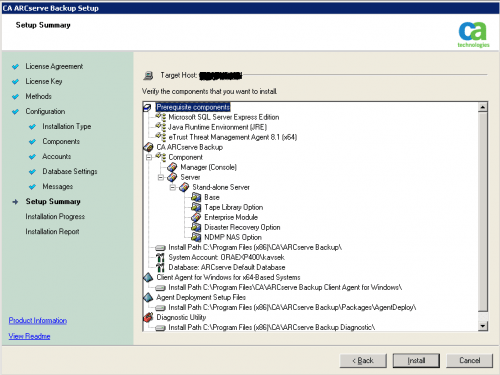
and the build version:
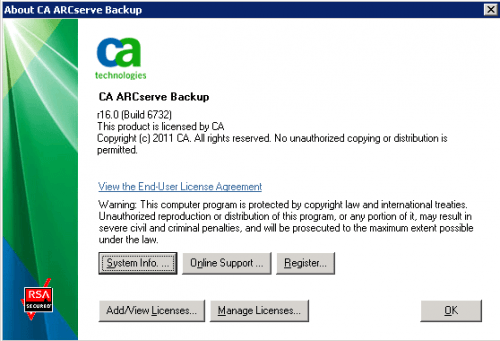
In my case ArcServe 16 was installed under local Administrator account and this local account is automatically granted “ArcServe Administrator” role. Note that Roles were introduced with ArcServe 12.
Note: “User profiles Manager” is shown only if you loged on to ArcServe with caroot account!!
You should keep your caroot account information secret, don’t allow a bunch of administrators to use this account for day to day job activities on backup server. You should either grant appropriate role to Windows authenticated user or create internal (ArcServe specific) account. For example, I want to create internal account for myself with command line tool ca_auth:
Let’s display short help for ca_auth:
C:\Program Files (x86)\CA\ARCserve Backup>ca_auth -user

Usage :
        ca_auth [-cahost host] -user     add username [passwd] [-assignrole [rolelist]]
        ca_auth [-cahost host] -user     delete username
        ca_auth [-cahost host] -user     chgpasswd username [passwd]
        ca_auth [-cahost host] -user     chgrole username [rolelist]
        ca_auth [-cahost host] -user     validate username [passwd]
        ca_auth [-cahost host] -user     group username
        ca_auth [-cahost host] -user     getall
C:\Program Files (x86)\CA\ARCserve Backup>ca_auth -user add alesk mysecretpwd


Current Available Role List:
=====================================

1) Backup Operator
2) Restore Operator
3) Device Operator
4) Tape Operator
5) Security Administrator
6) Report Operator
7) Monitor Operator
8) ARCserve Administrator
9) Ownership Checking Exemption Privilege

=====================================


Please assgin roles for this user, you can assign more than one role at a time and
should seperate the selection with comma: 8
If we want to list all existing accounts (internal as well as Windows authenticated):
C:\Program Files (x86)\CA\ARCserve Backup>ca_auth -user getall

User names:

        caroot
        WINBACKUPSRV\administrator
        alesk

Note that in my case I have among ArcServe users two internal accounts (caroot and previously created alesk)
and one windows authenticated that was created by default during ArcServe installation.
I’ll be using internal account (alesk) to prepare backup scripts (*.asx), but I would like to delegate execution of those scripts to some backup operator via cabatch command line utility. All I want is to give backup operator (Joe) a possibility to submit backup jobs (asx) to ArcServe with command line tool cabatch from his workstation (WIN7BACKUP). To allow Joe to submit backup jobs to server we must create caroot equivalence for him.
Let’s display short help for -equiv:
C:\Program Files (x86)\CA\ARCserve Backup>ca_auth -equiv

Usage :
        ca_auth [-cahost host] -equiv    add domainname\ntuser hostName ARCserveBackupUser [caroot_username] [caroot_password]
        ca_auth [-cahost host] -equiv    getequiv [domainname\ntuser hostName]
        ca_auth [-cahost host] -equiv    delete domainname\ntuser hostName [caroot_username] [caroot_password]
        ca_auth                         -equiv    whoami
If Joe is logging on his workstation (WIN7BACKUP) with his domain account ACME\joe then the command would be:
cmd>ca_auth -equiv add ACME\joe WIN7BACKUP caroot caroot carootsecretpwd
To check if equivalence exists:
cmd>ca_auth -equiv getequiv ACME\joe WIN7BACKUP
Equivalent ARCserve user for ACME\joe@WIN7BACKUP : caroot
Note: username, domain and hostname are case sensitive!
2) WORKSTATION FOR OPERATOR
In ArcSercve 11.x it was enough if we simply copied cabatch.exe with necessary libraries to operator workstation.
For cabatch to work in ArcServe 16, we need to install ArcServe Manager to Joe workstation (WIN7BACKUP).
After installation of ArcServe 16 Manager, I tried to execute some test backup with:
cmd> cabatch /H=WINBACKUPSRV /S=BackupTest.asx
and received strange error:
*** Can't find out the primary server of WIN7BACKUP
I spent a couple of hours troubleshooting this error, from checks that all Arcserve services properly run on my workstation (WIN7BACKUP) to recreating caroot equivalence…until I realized that my $ARCSERVEHOME\config\discovery.cfg file is empty, without any information about my backup server (WINBACKUPSRV). I added the following two lines to discovery.cfg and backup submit worked:
# note that DOMAIN is ArcServe domain, not Windows domain!
DOMAIN  WINBACKUPSRV
PRIMARY WINBACKUPSRV
3 KNOWN ISSUES
So far, the only unexplained issue is a timeout from the time we hit enter on cabatch and the time backup appears on backup server. In 11.5 the timeout was really short (2-5 seconds), in 16.0 timeout is substantial (60-80 seconds). It’s not a show stopper but certainly something I’ll be paying attention for awhile.
Another issue that is actually not related to ArcServe is UAC control in Windows 7, however the issue is easily resolved (more on this in another post).
Selectively disable UAC on Windows 7
During recent tests of ArcServe 16, I found out that command line tool cabatch.exe on my Windows 7 (x64) workstation triggers User Account Control (UAC) mechanism, resulting in a dialog box where I need to confirm application launch. This is unacceptable for automation of submitting backup jobs. Instead of completely disabling UAC on my Workstation I decided to turn off UAC selectively, just for a couple of CA command line tools. Here are the steps for cabatch:
Step 1) You’ll need “Microsoft Application Compatibility Toolkit 5.6”, you can download and install ApplicationCompatibilityToolkitSetup.exe from Microsoft site”.
Step 2) run Compatibility Administrator. In my case cabatch.exe is 32-bit binary, so I must launch 32-bit “Compatibility Administrator” from program group:
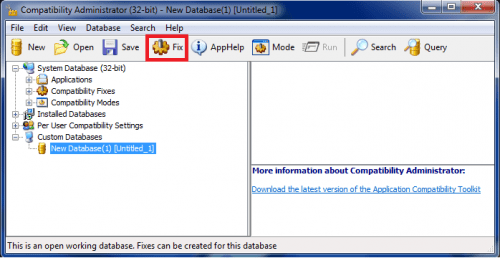
Click on Fix button and enter application info:
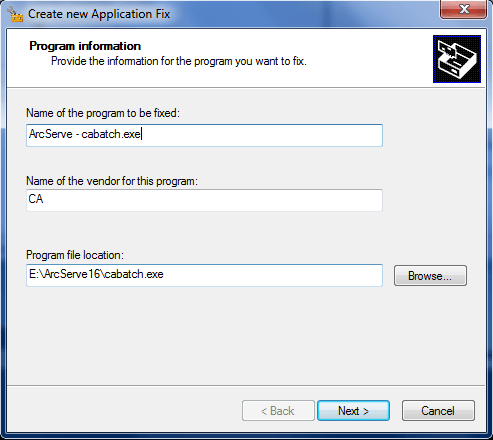
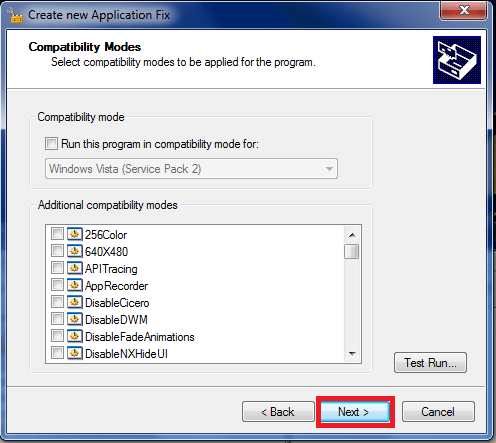
skip Compatibility mode with button Next:
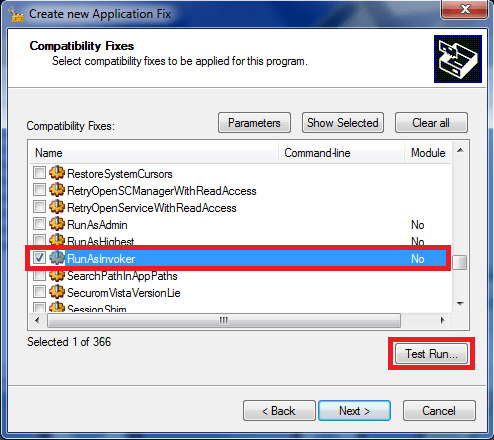
on Compatibility fixes scroll down until you find RunAsInvoker and check it (you can also run a test):
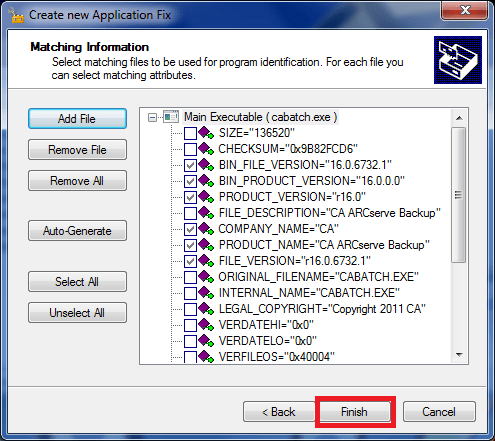
on Matching information screen leave everything as it is and click Finish:
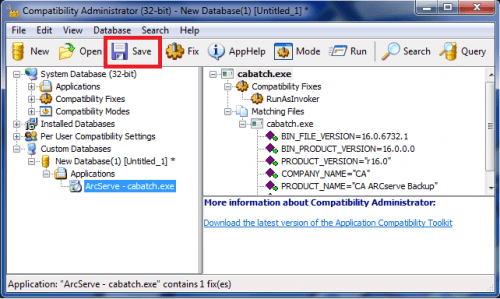
click on Save button to save newly created database:
name the database so, that you’ll know what it is for (DisablingUAC-app…):
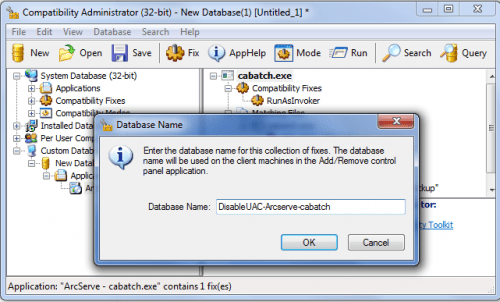
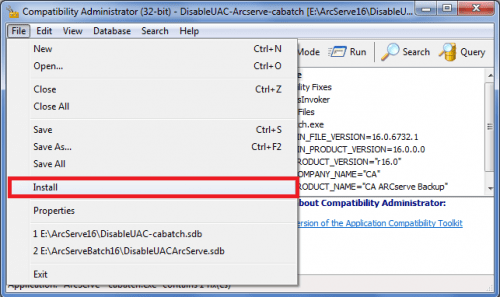
then open File menu and install database:
you’ll get confirmation if installation was successful:
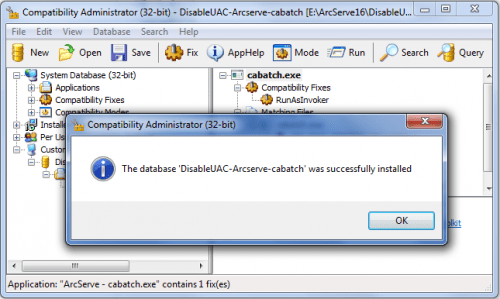
That’s it. No more UAC nagging while executing cabatch.exe.
Oracle 32-bit ODBC on Windows 7 x64
After I prepared my new Windows 7 Enterprise x64 workstation with a bunch of 64-bit Oracle software, I also needed connectivity to Oracle from various 32-bit software. So, I downloaded and installed the latest and greatest 32-bit Oracle11g instant client (11.2.0.2.0) from OTN with all the goodies, including ODBC driver that I need for troubleshooting support issues of our MS Access 2003/2007/2010 users.
I opened 32-bit ODBC administrator (Windows\SysWOW64\odbcad32.exe) and when I tried to add System DSN with instanclient 11.2 driver I was stopped with the error:
The setup routines for the Oracle in instantclient_11_2 ODBC driver could not be loaded due to system error code 14001.
as shown below :

followed by instruction to check the Event log:
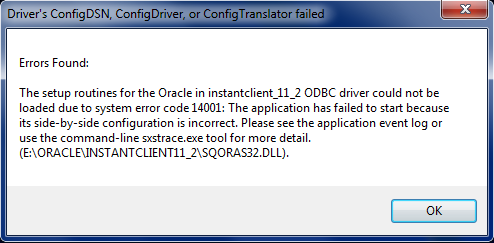
and so I did…

The “Microsoft.VC80.MFC” part of the error message in Event Log was saying that some C++ redistributable libraries were missing. With some trial and miss I found out that I need to install 32-bit Microsoft C++ 2005 SP1 Redistributable Package (x86) on my Windows 7 x64.
I downloaded “Microsoft Visual C++ 2005 SP1 Redistributable Package (x86)” from Microsoft Download Center:

Notice the match of version numbers of libraries as shown on the last two pictures (8.0.50727.762)!
After I installed 32-bit C++ 2005 libraries on my Windows7 x64 workstation I was able to use 32-bit ODBC driver with my Instant client 11g installation.

 dbaportal.eu
You must be logged in to post a comment.