Blog Archives
DebugDiag for Windows x64
DebugDiag is Microsoft diagnostic tool for troubleshooting process crashes, hangs and high memory usage.
See introduction article, written by Michael Morales (a senior escalation engineer for Microsoft’s Global Escalation Services team) in December 2008 issue of Windows IT Pro magazine, InstantDocID# 100577, for details on how to use this tool.
At the moment I’m investigating “weird” Oracle service crash on Windows 2003 x64 (hopefully non-production server) that occurs more or less at the same time every day. What makes troubleshooting this case interesting is a complete lack of any trace files by Oracle. Nothing in alert.log, bdum, udump etc.
I knew that using some OS debug tool is my only hope to narrow down the cause for the service crash.
As a longtime subscriber on Windows IT Pro Magazine, I was well aware of the great articles written by Mr. Morales, so it was not hard to find one with DebugDiag description.
The only version that I found on Microsoft site was Debug Diagnostic Tool v1.1, which unfortunately supports only Windows x86. Somehow discouraged I sent an email to Mr. Morales asking if there is any plans to port this tool to Windows x64. He made my day by promptly replying the link to IIS Diagnostic Toolkit 1.0, part of which is also DebugDiag. At the time of writing this note this is the latest release for Windows x64 and documentation can be found here.
ShellRunas
Recently I’m more involved with Windows 2008 Server and nuances Microsoft delivered with this release (ok, they started with Vista, but this is an OS I simply don’t care about). One such odd decision that MS team made was to replace “Run As…” in Explorer shell with Run As Administrator, removing the option to enter alternative account.
You can still use command line tool runas in the same way you can on XP/2003, which is fine if you want to create permanent shortcut on your desktop to launch some application as some other user (not necessarily Administrator).
It’s silly that they removed “Run As…” from the Explorer Shell as this was really a convenient way for me — all I needed to do is to right click target application, select Run As, enter proper (“ordinary”, “application”…) user credentials and I was done. I was not surprised when I found plenty of complaints on the net about missing RunAs in the shell, so it didn’t come as a surprise when I found that Mark Russinovich delivered an applet that corrects that mistake. Simply download and install ShellRunas and you’re back in business.
Windows Search – enabling search in .sql files
It’s one of those little annoyances working with Windows that I encounter now and then, when Microsoft disables something, without giving us a user friendly way of overriding their choice. Someone on the public forum complained about Windows Search because he could not find some Oracle supplied sql script that is responsible for particular object creation. Of course, files with extension .sql are excluded from the Windows Search by default.
Out of the box (Windows XP/2003) an attempt to find some string in .sql scripts will not reveal anything (see example in the picture).

Microsoft knowledge base article KB309173 describes two methods to enable search in files that are by default excluded by Windows Search (such as .log, .sql, .xml, …). I prefer method 1, enabling search for particular extension (such as .sql, .log, .xml) instead of turning off completely the restriction.
In short:
1) open registry editor and navigate to HKEY_CLASSES_ROOT\.sql or another extension of your choice, such as .log, .xml,…
2) since we know that we’re dealing with plain text in those files we can add Plain Text handler by adding key named PersistentHandler with the default value {5e941d80-bf96-11cd-b579-08002b30bfeb}.

3) After log off / logon Windows search should find the string in .sql files
Microsoft Virtual CD-ROM Control Panel
Lately I work a lot with VMWare virtual machines and that’s why I keep all the relevant software in ISO images. I was looking for a simple (and free) tool that will allow me to mount ISO images on Windows XP workstations, outside of VMWare. You can find plenty of free software on the net but since Microsoft has it’s own tool, called Virtual CD-ROM Control Panel, I decided to use that one.
After you download the package, simply unpack VCdControlTool.exe and VcdRom.sys in any folder you wish and start VCdControlTool.
User interface is really simple:
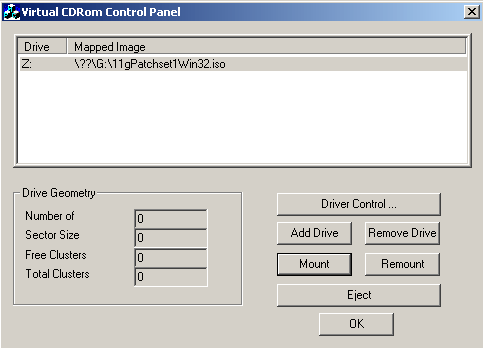
You’ll find detailed explanation in readme.txt that comes with the tool, here is a quick guide:
- Driver Control -> Install Driver -> Browse and select vcdRom.sys
- Start Driver
- Add Drive
- Mount -> Browse and select ISO that you want to mount
Upgrading MS OLAP 2000 to MS OLAP 2005
I’m not familiar with MS OLAP, but somehow one little MS OLAP database silently run for seven years on department server that is under our administration control. The thing is that this database was actually (and still is) used by several end users all this time (almost without a hitch). Not something we can easily replace with something else or simply throw away.
I’ll post some essential links here that I found helpful during my preparation phase for the upgrade.

 dbaportal.eu
You must be logged in to post a comment.