Blog Archives
How to install Cisco VPN Client on Ubuntu 10.04
Yesterday, I finally managed to install Cisco VPN client for Linux on my main home workstation, running Ubuntu 10.04. Though, I’m still troubleshooting connection issue with our service provider, I believe I’m one step further of true, Windows free workstation running on ASROCK mini.
Many thanks go to Ngo Ky Lam and his instructions HOW TO INSTALL CISCO VPN CLIENT ON UBUNTU JAUNTY JACKALOPE AND KARMIC KOALA 64 BIT, which are also valid for Lucid Lynx.
Here are the steps that I performed to install Cisco VPN Client 4.8.02.030:
--
-- Download VPN Client for Linux (4.8.02.030) from Cisco if you can,
-- since I don't have access to Cisco support site, I searched the web for the client package...
--
$ wget http://its.eiu.edu/software/vpnclient-linux-x86_64-4.8.02.0030-k9.tar.gz
$ tar xzvf vpnclient-linux-x86_64-4.8.02.0030-k9.tar.gz
--
-- Download and install patch from lamnk.com
--
$ cd vpnclient
$ wget http://www.lamnk.com/download/fixes.patch
$ alesk@dbaportal:~/vpnclient$ patch < ./fixes.patch
patching file frag.c
patching file interceptor.c
patching file IPSecDrvOS_linux.c
patching file linuxcniapi.c
patching file linuxkernelapi.c
patching file Makefile
--
-- Install VPN Client accepting all defaults
--
$ sudo ./vpn_install

Cisco Systems VPN Client Version 4.8.02 (0030) Linux Installer
Copyright (C) 1998-2006 Cisco Systems, Inc. All Rights Reserved.

By installing this product you agree that you have read the
license.txt file (The VPN Client license) and will comply with
its terms.

Directory where binaries will be installed [/usr/local/bin]

Automatically start the VPN service at boot time [yes]

In order to build the VPN kernel module, you must have the
kernel headers for the version of the kernel you are running.

Directory containing linux kernel source code [/lib/modules/2.6.32-25-generic/build]

* Binaries will be installed in "/usr/local/bin".
* Modules will be installed in "/lib/modules/2.6.32-25-generic/CiscoVPN".
* The VPN service will be started AUTOMATICALLY at boot time.
* Kernel source from "/lib/modules/2.6.32-25-generic/build" will be used to build the module.

Is the above correct [y]

Making module
make -C /lib/modules/2.6.32-25-generic/build SUBDIRS=/home/alesk/vpnclient modules
make[1]: Entering directory `/usr/src/linux-headers-2.6.32-25-generic'
  CC [M]  /home/alesk/vpnclient/linuxcniapi.o
  CC [M]  /home/alesk/vpnclient/frag.o
  CC [M]  /home/alesk/vpnclient/IPSecDrvOS_linux.o
  CC [M]  /home/alesk/vpnclient/interceptor.o
  CC [M]  /home/alesk/vpnclient/linuxkernelapi.o
  LD [M]  /home/alesk/vpnclient/cisco_ipsec.o
  Building modules, stage 2.
  MODPOST 1 modules
WARNING: could not find /home/alesk/vpnclient/.libdriver.so.cmd for /home/alesk/vpnclient/libdriver.so
  CC      /home/alesk/vpnclient/cisco_ipsec.mod.o
  LD [M]  /home/alesk/vpnclient/cisco_ipsec.ko
make[1]: Leaving directory `/usr/src/linux-headers-2.6.32-25-generic'
Create module directory "/lib/modules/2.6.32-25-generic/CiscoVPN".
Copying module to directory "/lib/modules/2.6.32-25-generic/CiscoVPN".
Already have group 'bin'

Creating start/stop script "/etc/init.d/vpnclient_init".
    /etc/init.d/vpnclient_init
Enabling start/stop script for run level 3,4 and 5.
Creating global config /etc/opt/cisco-vpnclient

Installing license.txt (VPN Client license) in "/opt/cisco-vpnclient/":
    /opt/cisco-vpnclient/license.txt

Installing bundled user profiles in "/etc/opt/cisco-vpnclient/Profiles/":
* New Profiles     : at_eiu eiu sample

Copying binaries to directory "/opt/cisco-vpnclient/bin".
Adding symlinks to "/usr/local/bin".
    /opt/cisco-vpnclient/bin/vpnclient
    /opt/cisco-vpnclient/bin/cisco_cert_mgr
    /opt/cisco-vpnclient/bin/ipseclog
Copying setuid binaries to directory "/opt/cisco-vpnclient/bin".
    /opt/cisco-vpnclient/bin/cvpnd
Copying libraries to directory "/opt/cisco-vpnclient/lib".
    /opt/cisco-vpnclient/lib/libvpnapi.so
Copying header files to directory "/opt/cisco-vpnclient/include".
    /opt/cisco-vpnclient/include/vpnapi.h

Setting permissions.
    /opt/cisco-vpnclient/bin/cvpnd (setuid root)
    /opt/cisco-vpnclient (group bin readable)
    /etc/opt/cisco-vpnclient (group bin readable)
    /etc/opt/cisco-vpnclient/Profiles (group bin readable)
    /etc/opt/cisco-vpnclient/Certificates (group bin readable)
* You may wish to change these permissions to restrict access to root.
* You must run "/etc/init.d/vpnclient_init start" before using the client.
* This script will be run AUTOMATICALLY every time you reboot your computer.
After you installed the client, copy your Cisco VPN client profile(s) that were given you by your system admin to /etc/opt/cisco-vpnclient/Profiles. If your profile is named AcmeVPN.pcf, then you can connect with:
--
-- Check that vpnclient_init service is running...
-- Optionally, install package sysvconfig if service util is missing on your machine
-- $ sudo apt-get install sysvconfig
--
$ service vpnclient_init status
--
-- if vpnclient_init is not running, then start the service...
--
$ sudo service vpnclient_init start
--
-- now, you can start a VPN connection with the client,
-- specifying the name of particular profile...
---
$ sudo vpnclient connect AcmeVPN
As I mentioned at the beginning of this post, I’m troubleshooting the connection to my workplace. As far as I can tell, Cisco client is working fine, it’s just that connection is terminated by the client for some (unknown) reason. I’m receiving:
Cisco Systems VPN Client Version 4.8.02 (0030)

Copyright (C) 1998-2007 Cisco Systems, Inc. All Rights Reserved.

Client Type(s): Linux

Running on: Linux 2.6.32-26-generic #47-Ubuntu SMP Wed Nov 17 15:59:05 UTC 2010 i686

Config file directory: /etc/opt/cisco-vpnclient
Initializing the VPN connection.
Contacting the gateway at xxx.xxx.xxx.xxx
Contacting the gateway at xxx.xxx.xxx.xxx
Secure VPN Connection terminated locally by the Client
Reason: Failed to establish a VPN connection.
There are no new notification messages at this time.
It must be something either in profile (pcf) file or perhaps with certificates (/etc/opt/cisco-vpnclient/Certificates).
[Update on December 12, 2010: I gave up on troubleshooting Cisco client for Linux – instead I’m happy to report that vpnc works flawlessly on my Ubuntu 10.04, as I wrote it here.]
ASRock mini – Part 4.
Just a quick note about ASRock running Windows 7 as a guest on Ubuntu (Lucid Lynx) host. The sole purpose of having Windows guest on my Ubuntu is to run Cisco VPN client that I need for remote access to my office (unfortunately, our “corporate” policy supports only VPN client for Windows) .
I’m happy to report that ASRock with 2GB RAM (256MB is used for graphic card) and dual core Atom 330 (1.6 GHz) processor is more than sufficient to run Windows 7 as a guest with 768MB RAM and one virtual CPU under VirtualBox 3.2. And that’s pretty much all I need from Windows 7 – to run VPN client plus Remote Desktop.
The only peculiarity I delved with VirtualBox on Ubuntu 10.04 was the following warning that I got during the guest startup:
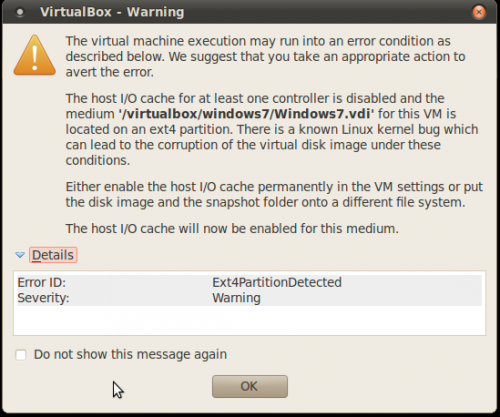
which I fixed by following the recommendation and turning the Host I/O cache on:

ASRock mini – Part 3.
In part 3 I’ll show how did I prepare my ASRock powered Ubuntu workstation at home with necessary tools related to my programming in python 2.6 and 3.1.
Fair warning: if I have a choice to install some software on Linux with official package manager, then I’ll always prefer this way over installing from source, no matter how recent source might be. That means that I’m not necessarily getting the bleeding edge packages, but on the other hand I’m sure I’m getting in return a stable, secure and easy to maintain system that takes care of dependencies during installation, uninstalls software for me, installs security fixes for me etc.
# -------------------------------------
# install python 3.1 (python 2.6
# was already installed)
# -------------------------------------
$ sudo apt-get install python3.1

# -------------------------------------
# Install setup tools for 2.6 and 3.1
# -------------------------------------
$ sudo apt-get install python-dev python-setuptools
$ sudo apt-get install python3-dev python3-setuptools

# -------------------------------------
# install IDLE for both, 2.6 and 3.1
# You'll find shortcuts for IDLE under
# Applications -> Programming
# -------------------------------------
$ sudo apt-get install idle-python2.6
$ sudo apt-get install idle-python3.1

# -------------------------------------
# Install PyQT 4 (4.7.2 is current
# version in ubuntu deb repository)
# -------------------------------------
$ sudo apt-get install python-qt4
$ sudo apt-get install python-qt4-doc
$ sudo apt-get install pyqt4-dev-tools
$ sudo apt-get install qt4-designer
$ sudo apt-get install qt4-dev-tools

# --------------------------------------
# Installing cx_Oracle (5.0.4)
# (see above section in which I
# already installed setuptools,
# easy_install won't work without them!)
# --------------------------------------

# I'm using Oracle11g R2 on Lucid Lynx

$ export ORACLE_HOME=/oracle/ora11
$ export LD_LIBRARY_PATH=$ORACLE_HOME/lib
$ export PATH=$ORACLE_HOME/bin:$PATH

# for python 2.6
$ sudo -E easy_install cx_Oracle

# for python 3.1 run:
$ sudo -E easy_install3 cx_Oracle

# ------------------------------
# Installing cx_Freeze
# ------------------------------

# for python 2.6
$ sudo apt-get install libssl-dev
$ sudo -E easy_install cx_Freeze

# if you're using python 3.1
$ sudo apt-get install libffi-dev
$ sudo -E easy_install3 cx_Freeze

# Install Eric (Python/Ruby) IDE
# --------------------------------------
$ sudo apt-get install eric
ASRock mini – Part 2.
In part 2 I’ll continue my home adventure in replacing Windows XP workstation with Ubuntu 10.04.
Installing Oracle11g R2
In addition to Oracle XE I need full blown Oracle11g R2 Enterprise Edition on my Ubuntu box. There is no shortage of blog articles on the net with installation steps that need to be followed to successfully install Oracle11g R2 on Ubuntu. I installed 11g R2 according to:
- Installing Oracle11g R2 EE on Ubuntu 10.04 – Lucid Lynx
- OTN forum thread : Installing Oracle 11g R2 on Ubuntu 10.04 (solved)
The only minor difference in the steps that I needed to sort out by myself was that my target platform is 32-bit and blog author is using 64-bit, thus some variations in packages being installed. Other then that Oracle11g R2 installed and compiled without any errors (I didn’t installed grid infrastructure, so can’t say much about that part!).
Connecting HP ScanJet G2710
Lucid Lynx ships with the Simple Scan (Applications->Graphics), as name applies, simple software for scanning documents. After I turned on HP ScanJet, Simple Scan automatically recognized device and I could start scanning documents. I believe Simple scan is good enough to fulfill average user needs for scanning various forms and documents at home.
Just in case if I ever need more control over scanning preferences I installed Xsane:
$ sudo apt-get install xsane
Xsane had not problem recognizing HP ScanJet G2710. Both, Simple Scan and Xsane supports multi page output to pdf file, feature that I found very useful. The part of configuration (scanner) that I feared the most was surprisingly easy. I’m impressed.
Connecting Samsung ML-2850 laser printer
Adding my network laser printer, Samsung ML-2850 was almost as easy as adding scanner. The only thing I had to do is to open Printing applet System->Administration->Printing, then clicking on Add button, then Network Printer and Find Network Printer where I entered printer hostname. Everything else was configured automatically for me. Since my printer supports duplex print I had to give necessary privileges to my TOH, so that she can tweak with printer preferences (System->Administration->Users and groups->selected TOH->Advanced settings-> User Privileges -> Configure Printers).
Installing Oracle VirtualBox
Installing Oracle VM VirtualBox 3.2.8 was as easy as downloading appropriate deb file for Lucid Lynx. After download ends, package manager will initiate installation. That’s all. VirtualBox become indispensable in my daily work life, replacing my licensed VMWare Workstation for good.
Installing SQL Developer
From Oracle Technetwork (new name for OTN) I downloaded SQL Developer zip file under section SQL Developer for other platforms and Java JDK 6 Update 21 from here. I followed installation instruction for JDK that I found here. Installation steps can be summarized as:
$ cd /home/alesk/Downloads

$ sudo unzip sqldeveloper-2.1.1.64.45-no-jre.zip -d /oracle

$ sudo chown -R oracle:dba /oracle/sqldeveloper

-- I decided to install JDK into $ORACLE_BASE

$ chmod a+x jdk-6u21-linux-i586.bin

$ cd /oracle

$ sudo /home/alesk/Downloads/jdk-6u21-linux-i586.bin

$ sudo chown -R oracle:dba jdk1.6.0_21/

-- SQL Developer can now be launched with command:

$ sh /oracle/sqldeveloper/sqldeveloper.sh

The first time you launch SQL Developer you'll be asked for the path to JDK, in my case I entered /oracle/jdk1.6.0_21.
Installing KomodoEdit
I’m a big fan of ActiveState free editor, KomodoEdit. After downloading I executed the following steps to install KomodoEdit:
$ tar zxvf Komodo-Edit-5.2.4-4343-linux-libcpp6-x86.tar.gz

$ cd Komodo-Edit-5.2.4-4343-linux-libcpp6-x86/

# KomodoEdit was installe into /usr/local/komodo...

$ sudo sh install.sh

# Adding symbolic link to the common path...

$ sudo ln -s /usr/local/komodo/bin/komodo /usr/local/bin/komodo
And that’s all for today. :-)
ASRock mini – Part 1.
I decided to replace one of my very old workstation with much smaller but powerful enough workstation that can easily be moved around the house. I bought ASRock ION 330HT nettop to the delight of my TOH.
My primary OS from now on will be Ubuntu 10.04 – yes, the time has finally come to move from Windows to Linux – at least at home. With the exception of a couple of “MS only” software; VPN client that I need to connect to my workplace and Photomatix HDR software, I can’t think of another reason why would I still need MS Windows at home?
Don’t get me wrong! Windows (XP/7) is stable desktop OS, no question about that – I’m not leaving Windows because of instability or because it’s a closed source, non-free operating system, not even because it’s the most insecure OS out there. No, nothing close to usual fairy tails you can read on the net. I’m changing Windows for Linux because Linux is different: it’s simply fun to use and as such represents a fresh air in my life.
I’ll start a short series of notes dedicated to how did I tweak Ubuntu to serve me at home where I need to test occasionally some Oracle SW, write some python code, scan documents, process RAW pictures from my DSLR camera, etc.
I might even try to put in use remote control that I got with ASRock and that was designated for Windows7 Media Center.
All that said I admit that I decided to dual boot Ubuntu with Windows7, just in case if I don’t find suitable software for processing HDR photos on Linux, at least at the level of Photomatix. Other than that, I hope I could eventually wipe out Windows7 partition.
Installing Ubuntu on ASRock is trivial and will not be covered at all in my notes. Let’s rather start by installing OracleXE and some other tools….
- Optimize ext4 file system (I’m willing to accept some risk associated with it!):
# Step 1)
# I have Ubuntu on /dev/sda5
$ sudo tune2fs -o journal_data_writeback /dev/sda5

# Step 2)
Edit /etc/fstab and change options (I added noatime,data=writeback,barrier=0,nobh), so my fstab for ext4 partition looks like:

#Entry for /dev/sda5 :
UUID=421467f3-e8d5-490b-973e-edf509652bfe	/	ext4	noatime,data=writeback,barrier=0,nobh,errors=rmount-ro  0   1
# Everything must be on the same line!

# Step 3)
Reboot the system.
See note for the reference before changing anything on file system!
-
Install OracleXE – this is trivial…
First edit your /etc/apt/sources.list and add line:$ sudo nano /etc/apt/sources.list
then add the following line at the end:
deb http://oss.oracle.com/debian unstable main non-free
then add GPG key for authorization:
$ wget http://oss.oracle.com/el5/RPM-GPG-KEY-oracle -O- | sudo apt-key add -
$ sudo apt-get update
$ sudo apt-get install oracle-xe

Above command will take care of dependency as well and install libaio (version 0.3.104-1 at the time of this writing).
You must finish OracleXE installation running the script:
$ sudo /etc/init.d/oracle-xe configure

If everything gets configured well, you should see message:

Starting Oracle Net Listener...Done
Configuring Database...Done
Starting Oracle Database 10g Express Edition Instance...Done
Installation Completed Successfully.
To access the Database Home Page go to "http://127.0.0.1:8080/apex"

$ sudo apt-get install oracle-xe-client
Note that I prefer oracle-xe (Western Europe) over oracle-xe-universal, because I can then easily change code page to EE8MSWIN1250 (yes this is not a mistake, my code page of choice on Linux is indeed EE8MSWIN1250 and not for example EE8ISO8859P2).
-
Install some usual tools (listed in arbitrary order):
VLC Player:$ sudo apt-get install vlc vlc-plugin-pulse mozilla-plugin-vlc
KeePassX:
$ sudo apt-get install keepassx
WiFi-Radar:
$ sudo apt-get install wifi-radar
Google Chrome
download deb from http://www.google.com/chrome
Foxit Reader for Linux (my favorite pdf reader on Windows):
download from http://www.foxitsoftware.com/pdf/desklinux/
Install NTFS config (this is dual-boot machine with Windows7):
$ sudo apt-get install ntfs-config

 dbaportal.eu
You must be logged in to post a comment.