Blog Archives
Sudoers on Oracle Enterprise Linux
— Sticky note on how to allow OEL admins (dba’s?) to execute any command with sudo
$ su -

# visudo
At the end of file add the following:
## Allow users in group admin to run all commands

%admin      ALL=(ALL)      ALL
Add new group (admin) or use dba group if you want dba’s to have full access of the system:
# groupadd admin

# usermod -a -G admin alesk
Verify group membership for user:
# id alesk
Test sudo privilege, for example gain root shell:
$ sudo -s
ASRock mini – Part 6
One annoying problem that I got from time to time was NVIDIA driver not being able to initialize graphic card immediately after the start of X Server. The workaround that I used was to simply check radio button “Restart X” offered by X Server and I was back in the game. Tonight was the night to fix this annoyance once for all. First, I opened “System Log Viewer” and checked X.org5.log and found this piece of information:
(**) NVIDIA(0): Depth 24, (--) framebuffer bpp 32
(==) NVIDIA(0): RGB weight 888
(==) NVIDIA(0): Default visual is TrueColor
(==) NVIDIA(0): Using gamma correction (1.0, 1.0, 1.0)
(**) May 16 20:10:05 NVIDIA(0): Enabling RENDER acceleration
(II) May 16 20:10:05 NVIDIA(0): Support for GLX with the Damage and Composite X extensions is
(II) May 16 20:10:05 NVIDIA(0):     enabled.
(EE) May 16 20:10:05 NVIDIA(0): Failed to initialize the NVIDIA graphics device PCI:1:0:0.
(EE) May 16 20:10:05 NVIDIA(0):     Please check your system's kernel log for additional error
(EE) May 16 20:10:05 NVIDIA(0):     messages and refer to Chapter 8: Common Problems in the
(EE) May 16 20:10:05 NVIDIA(0):     README for additional information.
(EE) May 16 20:10:05 NVIDIA(0): Failed to initialize the NVIDIA graphics device!
Next, I checked kern.log and found this interesting piece of the error stack:
May 16 20:10:03 ASROCK kernel: [   21.674176] vmap allocation for size 16781312 failed: use vmalloc=<size> to increase size.
May 16 20:10:03 ASROCK kernel: [   21.675430] NVRM: RmInitAdapter failed! (0x26:0xffffffff:1076)
May 16 20:10:03 ASROCK kernel: [   21.675453] NVRM: rm_init_adapter(0) failed
May 16 20:10:04 ASROCK kernel: [   22.004608] vmap allocation for size 16781312 failed: use vmalloc=<size> to increase size.
May 16 20:10:04 ASROCK kernel: [   22.005910] NVRM: RmInitAdapter failed! (0x26:0xffffffff:1076)
May 16 20:10:04 ASROCK kernel: [   22.005934] NVRM: rm_init_adapter(0) failed
May 16 20:10:04 ASROCK kernel: [   22.343136] vmap allocation for size 16781312 failed: use vmalloc=<size> to increase size.
May 16 20:10:04 ASROCK kernel: [   22.344431] NVRM: RmInitAdapter failed! (0x26:0xffffffff:1076)
May 16 20:10:04 ASROCK kernel: [   22.344454] NVRM: rm_init_adapter(0) failed
May 16 20:10:04 ASROCK kernel: [   22.668109] vmap allocation for size 16781312 failed: use vmalloc=<size> to increase size.
May 16 20:10:04 ASROCK kernel: [   22.669346] NVRM: RmInitAdapter failed! (0x26:0xffffffff:1076)
May 16 20:10:04 ASROCK kernel: [   22.669368] NVRM: rm_init_adapter(0) failed
May 16 20:10:05 ASROCK kernel: [   22.991828] vmap allocation for size 16781312 failed: use vmalloc=<size> to increase size.
May 16 20:10:05 ASROCK kernel: [   22.993177] NVRM: RmInitAdapter failed! (0x26:0xffffffff:1076)
May 16 20:10:05 ASROCK kernel: [   22.993199] NVRM: rm_init_adapter(0) failed
I fixed the problem by adding vmalloc=256M to grub boot loader:
$ sudo nano /etc/default/grub

then I changed:

GRUB_CMDLINE_LINUX_DEFAULT="quiet splash"

to:

GRUB_CMDLINE_LINUX_DEFAULT="quiet splash vmalloc=256M"

and

$ sudo update-grub
So far so good, I could not reproduce the error by rebooting machine. Here is my Vmalloc after I added vmalloc boot option:
$ cat /proc/meminfo | grep Vmalloc
VmallocTotal:     262144 kB
VmallocUsed:       77512 kB
VmallocChunk:     166908 kB
ASRock mini – Part 5.
Here are my notes about setting up python programming environment on my ASRock mini running Ubuntu 10.04 (32-bit), covering the latest and greatest Python 3.2, plus some third party libraries that I need for my work.
Fifth note in this series will cover:
- how to install python 3.2.0 (32-bit) from source in alternate location
- how to install cx_Oracle 5.0.4 from source
- how to install PyYAML 3.09 from source
- how to install lxml 2.3 from source
- how to install PyQt 4.8.3 from source
PYTHON 3.2
Soon after my first failed attempt to compile python 3.2 on my Ubuntu 10.04 workstation, I realized that tk-dev package was missing on my system, causing IDLE to report the error:
IDLE can’t import Tkinter. Your Python may not be configured for Tk.
$ sudo apt-get install tk-dev
Then I proceeded with the python build:
$ mkdir python

$ cd python

$ mkdir python32

$ cd python32

$ wget http://www.python.org/ftp/python/3.2/Python-3.2.tgz

$ tar xvzf Python-3.2.tgz

$ cd Python-3.2

$ ./configure --prefix=/opt/python3.2

$ make

$ sudo make install

$ sudo ln -s /opt/python3.2/bin/python3.2 /usr/bin/python32

$ sudo ln -s /opt/python3.2/bin/idle3.2 /usr/bin/idle-python3.2
Now you can create launcher on your desktop that’ll point to /usr/bin/idle-python3.2.
THIRD PARTY LIBRARIES
cx_Oracle 5.0.4
Note! I’m using “full” Oracle 11g R2 client, not an instant client! For instant client refer to the BUILD document that ships with cx_Oracle library.
-- Download tar with the source from http://cx-oracle.sourceforge.net/

-- to ~/python/cx_Oracle, then proceed:

$ export ORACLE_HOME=/oracle/ora11

$ export LD_LIBRARY_PATH=/oracle/ora11/lib

$ cd ~/python/cx_Oracle

$ tar xvzf cx_Oracle-5.0.4.tar.gz

$ cd cx_Oracle-5.0.4

$ python32 setup.py build

$ sudo su - root

# export ORACLE_HOME=/oracle/ora11

# export LD_LIBRARY_PATH=/oracle/ora11/lib

# cd /home/alesk/python/cx_Oracle/cx_Oracle-5.0.4

# python32 setup.py install

# exit
Notice how I “sudo su – root” to root and set ORACLE_HOME and LD_LIBRARY_PATH variables, otherwise install will fail if you simply “sudo python32 setup.py install”, since root (usually) doesn’t have profile with environment variables related to Oracle installation.
Make a short test:
$ python32
Python 3.2 (r32:88445, Mar 16 2011, 19:42:11)
[GCC 4.4.3] on linux2
Type "help", "copyright", "credits" or "license" for more information.
>>> import cx_Oracle
>>> print(cx_Oracle.version)
5.0.4
>>> print(cx_Oracle.clientversion())
(11, 2, 0, 2, 0)
PyYAML 3.09
$ cd ~/python/PyYAML

$ wget http://pyyaml.org/download/pyyaml/PyYAML-3.09.tar.gz

$ tar xvzf PyYAML-3.09.tar.gz

$ cd PyYAML-3.09

$ sudo python32 setup.py install

--

-- test PyYAML installation...

--

$ python32 setup.py test
lxml 2.3
Module lxml depends on libxml2 and libxslt libraries that could be installed from apt repository, but after reading what are the recommended versions of libraries in lxml documentation, I decided to install the latest versions ob both libraries from source.
$ cd ~/python/lxml

$ wget ftp://xmlsoft.org/libxml2/libxml2-2.7.8.tar.gz

$ wget ftp://xmlsoft.org/libxml2/libxslt-1.1.26.tar.gz

$ wget http://pypi.python.org/packages/source/l/lxml/lxml-2.3.tar.gz
$ tar xvzf libxml2-2.7.8.tar.gz

$ cd libxml2-2.7.8

$ ./configure

$ make

$ sudo make install
$ cd ..

$ tar xvzf libxslt-1.1.26.tar.gz

$ cd libxslt-1.1.26

$ ./configure

$ make

$ sudo make install
Finally, we can install lxml:
$ tar xvzf lxml-2.3.tar.gz

$ cd lxml-2.3

$ python32 setup.py build

$ sudo python32 setup.py install
After installation run a test by printing versions of lxml, libxml2 and libxslt:
$ python32
>> from lxml import etree
>> print(etree.LXML_VERSION)
>> print(etree.LIBXML_VERSION)
>> print(etree.LIBXSLT_VERSION)
PyQt 4.8.3
I followed instructions that you can find at:
http://www.riverbankcomputing.co.uk/static/Docs/PyQt4/html/installation.html
Note:
After my first failed attempt to compile PyQt, I realized that I need to install libxext-dev to avoid error:
...

...

/usr/bin/ld: cannot find -lXext

collect2: ld returned 1 exit status

make[1]: *** [QtHelp.so] Error 1

make[1]: Leaving directory `/home/alesk/python/PyQt/PyQt-x11-gpl-4.8.3/QtHelp'

make: *** [all] Error 2

...
You can install the package with:
$ sudo apt-get install libxext-dev
Note: sip module is a prerequisite before we can configure & build PyQt!
$ cd PyQt

$ wget http://www.riverbankcomputing.com/static/Downloads/sip4/sip-4.12.1.tar.gz

$ cd sip-4.12.1

$ python32 configure.py

$ make

$ sudo make install

$ cd ..
Now, we can download, build and install PyQt:
$ wget http://www.riverbankcomputing.com/static/Downloads/PyQt4/PyQt-x11-gpl-4.8.3.tar.gz

$ tar xvzf PyQt-x11-gpl-4.8.3.tar.gz

$ cd PyQt-x11-gpl-4.8.3

$ python32 configure.py
Do you accept the terms of the license? yes
$ make
$ sudo make install
Make s simple test of PyQt installation…
$ python32
>> from PyQt4.QtCore import QT_VERSION_STR
>> print(QT_VERSION_STR)
Android SDK on Ubuntu 10.04
It was about time to install Android SDK on my ASROCK workstation powered by Ubuntu 10.04. Right know, I’m using Dalvik Debug Monitor from Android SDK to take screenshot from my HTC Hero, but on the long run I think I’ll need the SDK if I’ll ever want to write and run some python script on Android using excellent SL4A (Scripting Layer for Android).
PART 1 – enabling ddms
Make sure Java jdk is in the path (if you don’t have java on your machine, install it with sudo apt-get openjdk-6-jdk).
I used JDK that I installed for Oracle SQLDeveloper.
$ export PATH=/oracle/jdk1.6.0_21/bin:$PATH
$ mkdir android_sdk
$ cd android_sdk
$ pwd
/home/alesk/android_sdk
Download and install Android SDK:
$ wget http://dl.google.com/android/android-sdk_r10-linux_x86.tgz
$ tar zxvf android-sdk_r10-linux_x86.tgz
$ cd android-sdk-linux_x86/
If you wish to run ddms (Dalvik Debug monitor) you’ll have to install “Android SDK Platform-tools”.
Launch android GUI and install package:
$ cd tools
$ ./android
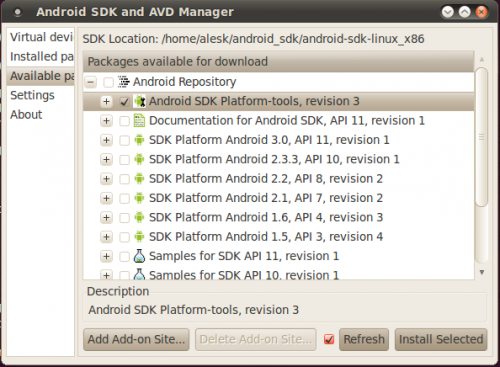
Open Available packages and select “Android SDK Platform-tools, Revision 3”:
After installation completes, make sure that you run adb as root (by default adb starts as user).
$ cd /home/alesk/android_sdk/android-sdk-linux_x86/platform-tools
$ ./adb kill-server
$ sudo ./adb start-server
[sudo] password for alesk:
* daemon not running. starting it now on port 5037 *
* daemon started successfully *
Check if you can see your phone as a device.
$ ./adb devices
List of devices attached
HT97RL904617	device
Now you can start ddms (Dalvik Debug Monitor).
$ cd /home/alesk/android_sdk/android-sdk-linux_x86/tools
$ ./ddms
PART 2 – Preparing Android Emulator
$ cd android_sdk/tools
$ ./android
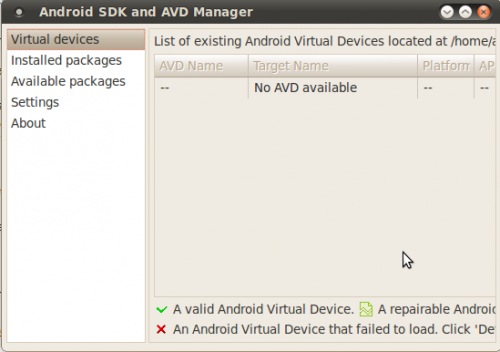
As you can see, there are no Virtual Devices yet. Let’s create one, but before we start we need to download and install API’s for target device.
Select “Installed packages”, then button “Update all”. From the list I selected Accept All. Be patient, it’ll take quite some time for download to finish (it took approx. 2 hours on 1Mbps “broadband”).
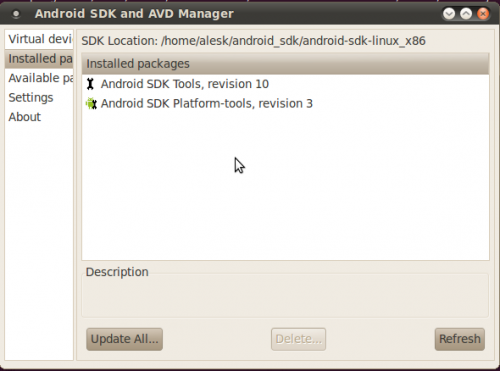
After downloads complete we can start creating Virtual Android device that’ll serve as emulator.
Click button “New”, then fill necessary information about your target device. Since I own HTC Hero with Android OS 2.1 I created virtual devices as shown on the picture:
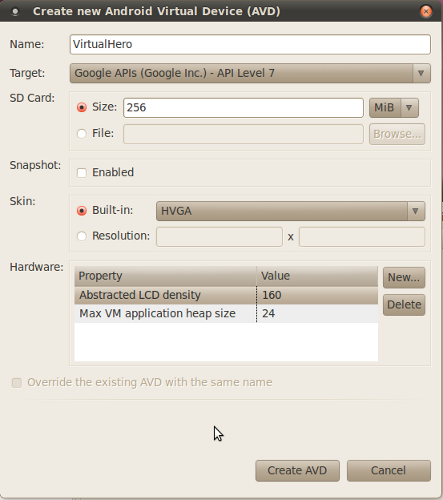
After you click on “Create AVD”, you’ll see newly created virtual device among Virtual devices section.
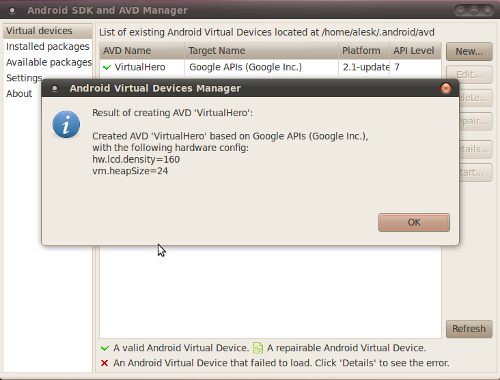
Now, we can start Virtual device by selecting device from the list and clicking on Start button, then on Launch button (leaving everything on the menu in default state).
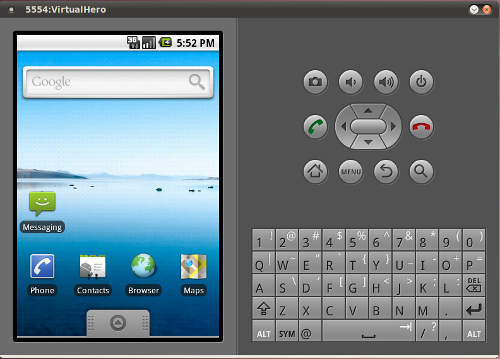
It can take several minutes for Virtual Device to “boot”, in short, don’t expect from emulator the same speed as if you’re using “real” phone (on my ASROCK, with dual core Atom processor, it took approx. five minutes to boot the virtual phone device. In general, everything is extremely slow compared with a real Android phone!). Eventually, you should see android home screen similar to this one:
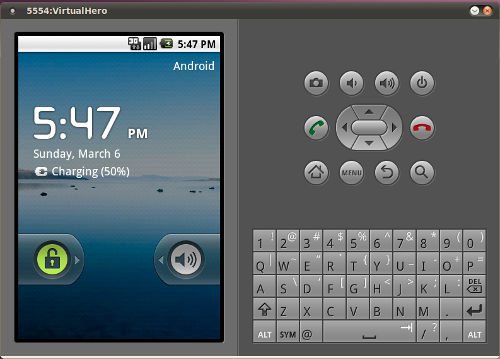
Use mouse to unlock your “phone”, by dragging lock to the right. Mouse click replaces a “tap” on real phone.
I tested my newly created virtual “HTC Hero” device by installing Python for Android and SL4A according to this article..
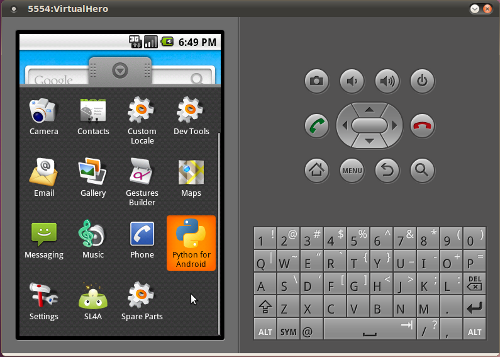
If you “tap” on SL4A you should see python demo scripts.
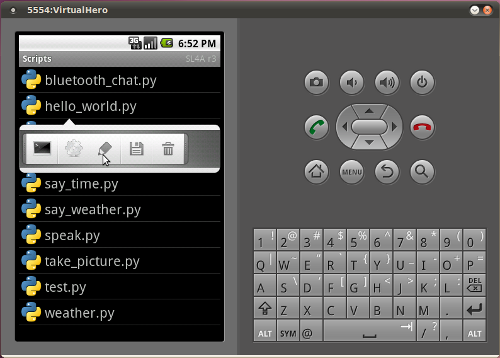
Let’s say that we wrote some python script (hello_dbaportal.py) that we want to upload to virtual device, it’s as easy as:
$ cd android_sdk/platform-tools
$ ./adb push hello_dbaportal.py /sdcard/sl4a/scripts
* daemon not running. starting it now on port 5037 *
* daemon started successfully *
1 KB/s (80 bytes in 0.077s)
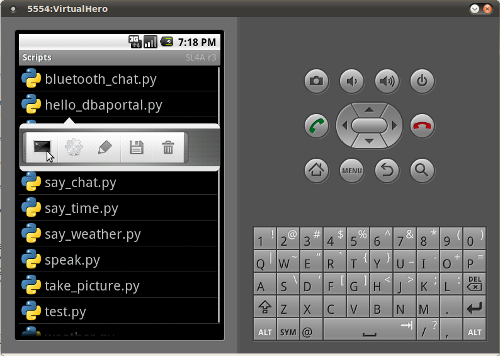
If you check emulator, you’ll find python script hello_dbaportal.py, from where you can run the code…
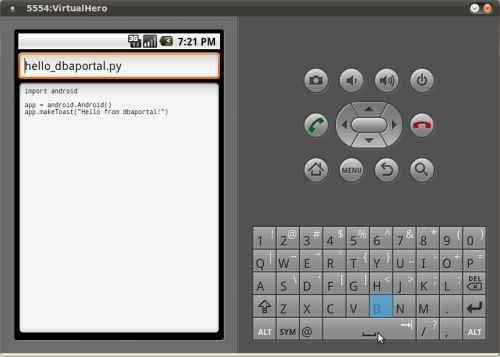
or, if you’re keen to fiddle with the script inside emulator, you can also edit the script…
How to install and use vpnc to connect to Cisco VPN concentrator
Even though I managed to install Cisco VPN client 4.8 on my Ubuntu (Lucid Lynx) workstation, I was not successful at troubleshooting the connection attempt to our corporate Cisco VPN concentrator. Each attempt of mine to establish VPN connection, ended in greeting with the error message:
Secure VPN Connection terminated locally by the Client
Reason: Failed to establish a VPN connection.
There are no new notification messages at this time.
I almost gave up my hopes to use Ubuntu for VPN, fortunately, I recently met an Oracle DBA (Igor@3Gen), who told me that he’s is successfully using vpnc to connect to the same Cisco VPN concentrator as I am.
He was kind (thanks Igor!) to share his notes on the subject. This is my resume of steps that I followed to install and configure vpnc (of course, some technical details are obfuscated).
Step 1) Install vpnc and Gnome GUI plugin for network manager
--
-- Install vpnc
--
$ sudo apt-get install vpnc
$ sudo apt-get install network-manager-vpnc
$ sudo apt-get install network-manager-vpnc-gnome
Step 2) Extract group password from Cisco client pcf file
Until now, I was using Cisco VPN client on Windows 7, that was packed and delivered to me by our corporate VPN support team. My Cisco VPN client (v5.0.02.0090) already included the necessary profiles (*.pcf files) with the configuration data. Profile configuration files are usually located in C:\Program Files\Cisco Systems\VPN Client\Profiles.
If you open your pcf file you’ll find (among other data) encrypted group password in the field !enc_GroupPwd. This is a pre-shared secret that we first need to decrypt it and then use it in our vpnc configuration file. Hopefully, this is not hard with the tools that exists on the net.
--
-- 2.1 Prepare working directory
--
$ mkdir vpnc
$ cd vpnc
--
-- 2.2 Install cisco-decrypt from source file
--
$ wget http://www.unix-ag.uni-kl.de/~massar/soft/cisco-decrypt.c
$ sudo apt-get install libgcrypt11-dev
$ export PATH=.:$PATH
$ gcc -Wall -o cisco-decrypt cisco-decrypt.c $(libgcrypt-config --libs --cflags)
--
-- 2.3 Check that cisco-decryp was built
--
alesk@dbaportal:~/vpnc$ ls -l cisco-decrypt
-rwxr-xr-x 1 alesk dba 7850 2010-12-04 18:04 cisco-decrypt
--
-- 2.4 Download pcf2vpnc
--
$ wget http://svn.unix-ag.uni-kl.de/vpnc/trunk/pcf2vpnc
$ chmod +x pcf2vpnc
--
-- 2.5 Copy your .pcf file from Windows client to our vpnc working directory
-- on ubuntu (let's say that our pcf file is called acme-vpn.pcf)
--  and run pcf2vpnc against our pcf file.
--
$ ./pcf2vpnc acme-vpn.pcf > acme-vpnc.conf
At this stage we have decrypted group password in acme-vpnc.conf.
[Note: there is a site that can decrypt Cisco group password for you. Personally, I prefer relying on my own tools, that’s why I compiled my own decryption tool.]
Step 3) Setup vpnc configuration file (/etc/vpnc/ACME-vpn.conf)
Use your favorite editor to create your vpnc configuration file…
$ sudo nano /etc/vpnc/ACME-vpn.conf
Then add the following lines:
IPSec gateway nnn.nnn.nnn.nnn
IPSec ID ACMEID
IPSec secret  fkvmdn34&3ldcmvnsbj#4%gB
Xauth username alesk@pda-acme
Where:
- nnn.nnn.nnn.nnn — is IP address of VPN gateway (!Host variable in pcf file). It’s recommended that you use IP instead of fully qualified domain name for the gateway, to avoid problem of resolving DNS to IP!
- IPSec ID — is group name (!GroupName variable in pcf file)
- IPSec secret — is group password, originally encrypted in pcf file as !enc_GroupPwd variable. You must enter decrypted version of the password that you’ll find in vpnc configuration file generated in step 2.5
- Xauth username — username for authentication (Username variable in pcf file)
Step 3) Modify firewall rules to allow VPN connection
Use your favorite editor to edit firestarter user-pre file to add some iptables rules:
$ sudo nano /etc/firestarter/user-pre
Add the following lines (replace nnn.nnn.nnn.nnn with the Cisco VPN gateway IP):
iptables -A INPUT -j ACCEPT -s nnn.nnn.nnn.nnn -p esp
iptables -A INPUT -j ACCEPT -s nnn.nnn.nnn.nnn -p udp -m multiport –sports isakmp,10000
iptables -A INPUT -j ACCEPT -i tun+
iptables -A OUTPUT -j ACCEPT -d nnn.nnn.nnn.nnn -p esp
iptables -A OUTPUT -j ACCEPT -d nnn.nnn.nnn.nnn -p udp -m multiport –dports isakmp,10000
iptables -A OUTPUT -j ACCEPT -o tun+
Restart your firewall:
alesk@dbaportal:~$ sudo service firestarter restart
 * Stopping the Firestarter firewall...                                  [ OK ]
 * Starting the Firestarter firewall...                                  [ OK ]
Step 4) Test vpnc connection
You can start VPN connection either on the command line or with a GUI (Networker). To start VPN on a command line open Terminal and run:
$ sudo vpnc --natt-mode cisco-udp ACME-vpn
You’ll be first asked to provide password for the sudo, then you’ll be asked for the VPN password. After that you should see the standard welcome banner from your VPN provider. From this point onwards you have working VPN connection, you can open Terminal Service client and connect to your Windows workstation at work or whatever you want to do.
When you wish to close VPN connection simply run the following command in terminal window:
$ sudo vpnc-disconnect
Configuring VPN connection with GUI using Network Manager:
If you prefer to work with a GUI network manager you can setup vpnc connection with plugin that was installed in step 1. Here are some screenshots (let’s say I want to configure ACME-vpn-2 connection):
1) Open network manager (up and down arrow at the left)

2) Select “VPN connections”, then “Configure VPN”
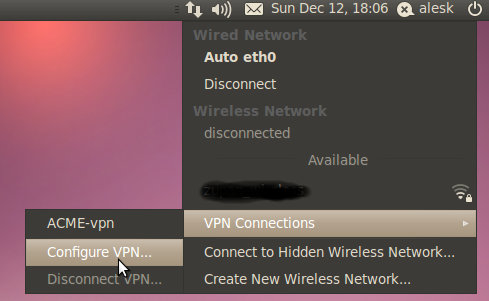
* Don’t be confused by existing ACME-vpn, this is vpn that I already created.
3) Click on Add button to setup new VPN connection

4) From combo box select “Cisco Compatible VPN (vpnc)”

5) Fill the VPN tab with VPN data according to your setup

6) Also select IP4 tab and select “Automatic (VPN) addresses only
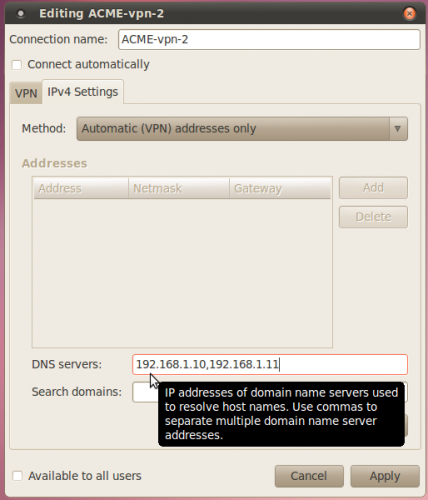
* Optionally enter (internal – inside VPN) DNS addresses.
Now, you can connect/disconnect from VPN by simply selecting VPN connection from Network Manager GUI.

 dbaportal.eu
You must be logged in to post a comment.