Author Archives: alesk
md5deep for Windows
Today I needed to compute md5 on 1TB+ files on Windows 2003 server, recursively. I’m a regular user of UnixUtils for Windows and thus GNU md5sum, but this time around I needed recursion on directories, something md5sum can’t do on it’s own. On Linux I would probably pipe the result of find command to the md5sum. Instead of writing some DOS (python?) script for Windows, I searched the Google and found md5deep tool that can do recursive operation on directory tree. In downloaded zip file you’ll also find related tools: sha1deep, sha256deep, hashdeep, tigerdeep and whirlpooldeep. Enjoy hashing :)
IronPython – how to compile exe
IronPython 2.6 ships with pyc.py (look in %IRONPYTONINSTALLDIR%\Tools\Scripts\pyc.py), script that can be used to compile python script(s) into binary (exe). For the purpose of this mini how-to I created a directory D:\IronTestCompile with the following contents:
D:\IronTestCompile>dir /b /oe
Microsoft.Scripting.ExtensionAttribute.dll
Microsoft.Scripting.dll
Microsoft.Scripting.Core.dll
IronPython.dll
IronPython.Modules.dll
Microsoft.Dynamic.dll
hello2.py
hello1.py
pyc.py
HelloWorld.py
From IronPython directory I copied all the necessary DLL’s (Microsoft*.dll, IronPython*.dll) that are needed for compilation and as run-time prerequisite to run compiled HelloWorld.exe. HelloWorld.py is my main script that imports two additional modules, hello1.py and hello2.py and pyc.py is compilation script shipped with IronPython 2.6.
Here is the contents of HelloWorld.py, hello1.py and hello2.py:
#
# HelloWorld.py
# IronPython - Compile test
#
import hello1
import hello2

print "HelloWorld from HelloWorld.py"
hello1.Hello()
hello2.Hello()
# End

# hello1.py
def Hello():
    print "Hello World from Hello1.py"

# hello2.py
def Hello():
    print "Hello World from Hello2.py"
Now let’s see what we can do with pyc.py script:
D:\IronTestCompile>ipy pyc.py

pyc: The Command-Line Python Compiler

Usage: ipy.exe pyc.py [options] file [file ...]

Options:
    /out:output_file                          Output file name (default is main_file.<extenstion>)
    /target:dll                               Compile only into dll.  Default
    /target:exe                               Generate console executable stub for startup in addition to dll.
    /target:winexe                            Generate windows executable stub for startup in addition to dll.
    /? /h                                     This message

EXE/WinEXE specific options:
    /main:main_file.py                        Main file of the project (module to be executed first)
    /platform:x86                             Compile for x86 only
    /platform:x64                             Compile for x64 only


Example:
    ipy.exe pyc.py /main:Program.py Form.py /target:winexe
And here is my command line that I used to compile console application HelloWorld.exe:
D:\IronTestCompile>ipy pyc.py hello1.py hello2.py /out:HelloWorld /main:HelloWorld.py /target:exe
Input Files:
        hello1.py
        hello2.py
Output:
        HelloWorld
Target:
        ConsoleApplication
Platform:
        ILOnly
Machine:
        I386
Compiling...
Saved to HelloWorld
End result of compilation are two files, HelloWorld.exe and HelloWorld.dll. Both files (plus above listes DLL’s) are needed for application to run. And here is sample output:
D:\IronTestCompile>HelloWorld
HelloWorld from HelloWorld.py
Hello World from Hello1.py
Hello World from Hello2.py
How to compile cx_Oracle module on Windows x86
Usually I would not touch with a stick open source package that need to be compiled on Windows. cx_Oracle is different. For me it’s a mandatory python extension module that just need to be there when I need to access Oracle database from python script. Until recently, I was happy with more or less promptly released binaries. They always installed and worked flawlessly. The problem is that at the time of this writing I’m starting to evaluate python 3.1.1 for which cx_Oracle is not yet available. It’s a trivial task to compile cx_Oracle on Linux, but I need Windows version as well. So, for the first time I tried to compile cx_Oracle on Windows by myself.
According to author build instructions, he recommends MinGW compiler for builds on Windows. To make my story short, I downloaded MinGW and to the best of my knowledge tried to compile cx_Oracle module. I miserably failed, each time with an error stating that vcvarsall.bat could not be found. Obviously setup.py script or perhaps python distutils module itself simply expects Microsoft compiler, Visual C++ to be present. After spending a couple of hours searching the web for hints I decided to try another route, with Microsoft Visual Studio Express 2008. Surprisingly cx_Oracle 5.0.2 compiled easily.
Here are the steps that I followed:
- downloaded cx_Oracle source code (see link “Source code only”) and unpacked the tar in temporary directory
- downloaded and installed Microsoft Visual C++ 2008 Express edition.
- downloaded and installed Python 3.1.1
- downloaded and installed Oracle10g client (10.2.0.4)
- compiled and installed cx_Oracle:
1) Open Visual Sudio Command Promt, Start -> Run:
%comspec% /k ""C:\Program Files\Microsoft Visual Studio 9.0\VC\vcvarsall.bat"" x86
2) within VS 2008 command prompt cd to directory where you untared cx_Oracle
C:\Program Files\Microsoft Visual Studio 9.0\VC> cd c:\Python3\cx_Oracle-5.0.2

C:\Python3\cx_Oracle-5.0.2>
3) set environment, for example:
C:\Python3\cx_Oracle-5.0.2> SET ORACLE_HOME=D:\ORACLE\ORA10

C:\Python3\cx_Oracle-5.0.2> SET PATH=C:\PYTHON3;%ORACLE_HOME%\BIN;%PATH%
4) compile and install cx_Oracle
C:\Python3\cx_Oracle-5.0.2> python setup.py build

C:\Python3\cx_Oracle-5.0.2> python setup.py install
5) test cx_Oracle by trying to import module
C:\Python3>python

Python 3.1.1 (r311:74483, Aug 17 2009, 17:02:12) [MSC v.1500 32 bit (Intel)] on

win32

Type "help", "copyright", "credits" or "license" for more information.

>>> import cx_Oracle

>>>
Visual Studio 2008 Express is free but need to be registered within 30 days, registration is completely up to you, if your only goal was to compile cx_Oracle you don’t need registration.
OpenVPN & Windows 7
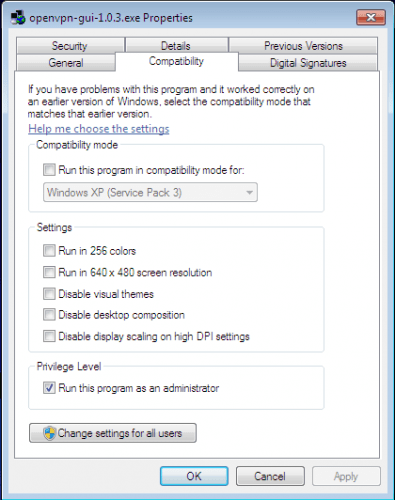
Skipping Vista altogether and moving to Windows 7 from XP as my primary workstation is causing me to troubleshoot my ignorance, here and there :-), especially with leveraged security built in Windows 7. One such application that I recently installed and that needs to run with admin rights is OpenVPN client. Routing part of OpenVPN client needs Administrator privileges. Instead of right clicking the application and picking “Run as Administator” each time, we can flag the application by right clicking executable, selecting Properties, then Compatibility tab and marking a check box “Run this program as an administrator” as shown on picture:
Preparing Windows 7 bootable USB key
There are tons of blog posts on the net about how to make USB bootable key with Windows 7. Here is how I prepared my 4GB USB key with Windows 7 for installation on my netbook;
To follow this recipe you’ll need:
– Windows 7 or Vista PC (not XP!)
– 4GB USB key or larger
– Windows 7 DVD (or ISO image with some ISO mounting tool, such as Virtual Clone Drive)
STEP 1) Prepare USB key with diskpart (make sure USB key is empty)
Open command prompt with Administrator privileges and start diskpart, then execute steps in similar way as they’re shown on picture:

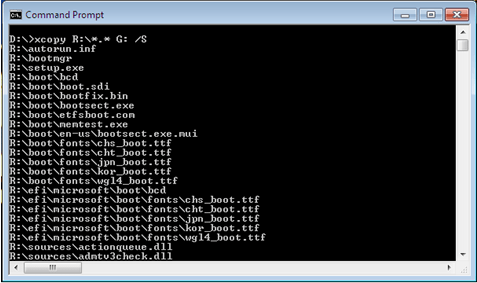
STEP 2) Copy files from Windows 7 DVD to USB key
Let’s assume your USB key got letter G: and your DVD is mounted on R:, open command prompt and copy files with xcopy:
STEP 3) Optional – rename ei.cfg file
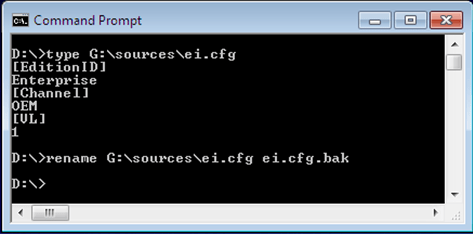
If you rename (or remove) ei.cfg file from sources directory then Windows Installer will give you a menu from which you can pick a particular Windows version (Ultimate, Professional, etc.) that you want to install.

 dbaportal.eu
You must be logged in to post a comment.