Category Archives: MS Windows
Notes about various technical issues of supporting and administering Windows Servers.
Windows 2008 – what’s new in TCP/IP stack?
I think Mark Minasi explanation of the changes in TCP/IP in Vista and Windows Server 2008 in his Newsletter #67 deserves a bookmarking in this thread. I’m sure I’ll need to re-read this newsletter during Windows Server 2008 evaluation.
How to reinstall DTC Service (Distributed Transaction Coordinator)
I found that on some workstations at client side “Distributed Transaction Coordinator” service was not running and could not be started. This service on the client machine is a prerequisite for one of our application that is using Oracle as a back-end.
Search on Google returned plenty of similar cases, but none of the recommended workarounds helped. Until I found the document that explains the procedure on how to reinstall the service.
Since DTC was not in use by any other service or application I picked a shorter path:
1) %WINDIR%\System32\msdtc.exe -uninstall

2) delete keys listed in KB 891801:

HKEY_CLASSES_ROOT\CIM
HKEY_LOCAL_MACHINE\SYSTEM\CurrentControlSet\Services\MSDTC
HKEY_LOCAL_MACHINE\SYSTEM\ControlSet001\Services\MSDTC
HKEY_LOCAL_MACHINE\SYSTEM\ControlSet002\Services\MSDTC
HKEY_LOCAL_MACHINE\Software\Microsoft\MSDTC

3) run %WINDIR%\System32\msdtc.exe -install

4) add registry key HKEY_LOCAL_MACHINE\SOFTWARE\Microsoft\MSDTC\XADLL

5) at command line run

regsvr32 mtxoci.dll.

You will receive a message that states that DllRegisterServer in Mtxoci.dll succeeded
How to authorize .NET application to run from network drive
Short example on how to authorize .NET application to run from central application distribution point on file server:
:: Run the script under user account that has Administrator rights on workstation of the user.
:: Obviously you must customize paths in the script. N:\ represents mapped network drive.
:::
SET PATH=C:\WINDOWS\Microsoft.NET\Framework\v2.0.50727;%PATH%
caspol -pp off
caspol -m -ag Internet_Zone -url N:\MYAPP\* FullTrust -n "MyAPP" -d "Privilege to run MyAPP"
caspol -m -ag LocalIntranet_Zone -url N:\MYAPP\* FullTrust -n "MyAPP" -d "Privilege to run MyAPP"
caspol -m -ag Trusted_Zone -url N:\MYAPP\* FullTrust -n "MyAPP" -d "Privilege to run MyAPP"
:: END
Windows DEP – Data Execution Prevention
I think I’ll need to refer to Microsoft article “A detailed description of the Data Execution Prevention (DEP) feature in Windows XP Service Pack 2, Windows XP Tablet PC Edition 2005, and Windows Server 2003” again in the future, that’s why I decided to write a short memo about DEP.
A week ago I received a Windows application compiled with Delphi. I tried to run application on our brand new server (Windows 2003 Standard Ed. R2, SP2, 32-bit, Intel Core Duo, 2.4GHz) with no success. I got “Address Violation at …[some hex address]” as soon as I tried to run the executable. The same application run successfully on Windows 2003 Standard Ed. R2, SP1, 32-bit (Pentium IV, 2GHz). The only difference is in CPU type and version of Service Pack.
Based on above article I assumed that software DEP is present in both versions of Windows 2003 – SP1 and/or SP2. So, I originally dismissed DEP as a potential cause for the error because it was turned on on both servers. This was a mistake.
The application provider suggested to turn off DEP feature completely on our new server and see if this helps. Instead, I decided to put Delphi application on the exception list for DEP and it helped. I believe it’s safer (but can also become more tedious) to list exceptions to the rule – especially if the same application is stored and run from different directories in which case you’ll have to browse to add the same application multiply times.
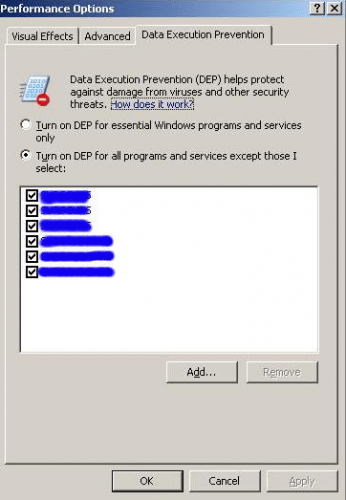
Conclusion: I believe SP2 for Windows 2003 server somehow changes the way, DEP actually works out of the box or it’s the (newer) CPU that changed the way OS is executing DEP.
Another thing to be careful about is to check DEP exception list after target executable is in any way changed (for example by replacing exe with the new one will trigger OS to remove application from the exception list!).
A quick search on Google revealed that this is a known problem with applications developed with Delphi and the one that Borland will have to deal with (perhaps they already fixed a compiler!?).
How much memory is available to 32-bit applications running on Windows x64?
A recent post on a dba-village.com forum triggered this topic. The forum member mentioned that one of the drawback of running 32-bit Oracle server on Windows x64 is, among other things, the limitation of total 3GB of memory per process, as it was the case in old-days, running Windows 2000/2003 with /3GB switch in boot.ini. This is not correct.
Well, Microsoft replaced venerable WOW32 with WOW64 in Windows x64. WOW32 was designed to run 16-bit applications on 32-bit OS and WOW64 that ships with Windows x64 was designed to support running 32-bit applications on Windows x64. (Btw. you can’t run 16-bit applications on Windows x64 anymore)
So, the question is, how does WOW64 handle memory for 32-bit applications? Well, it emulates the old environment, with one benefit. By default, the 32-bit application will have 2GB available virtual memory and if it’s compiled with /LARGERMEMORYAWARE flag, then the process can address 4GB of virtual memory. For example, oracle.exe (32bit) is compiled with such flag – that’s why it could use extra memory given by /3GB switch via boot.ini in the old days and that’s why it can address full 4GB within WOW64! That’s 1GB more compared to the very same process running natively on 32-bit Windows OS/CPU.
Two recommended articles:
- Windows Server 2003 x64 Editions, Deployment Scenarios by MVP, Charlie Russel
- Introducing Microsoft Windows Server 2003 x64 Editions for the Intel EM64T Platform by Ranjith Purush and Chip Webb

 dbaportal.eu
You must be logged in to post a comment.