Author Archives: alesk
My Oracle Support – Day 1
For better or worse Oracle finally retired old Metalink in favor of flashy “My Oracle Support”. Time will tell how well will Emperor’s New Clothes serve us. Today, I got stuck twice during the log on attempt, usually close at the end:

Click on Firefox reload page button did the trick. I guess this is partly due to techies around the World testing the new “Metalink”, I expect that things will settle in the next couple of weeks. One particular corner that I was skeptic in the past was Oracle Community. Mostly because I found “old” Metalink Forum engine that was underneath at the time and which didn’t allow us to use fixed font. This is — in not so humble opinion — a must have feature for posting technical content on the web, otherwise code samples are hard to read/follow.
So, this time around I clicked Community from the Menu and clicked on “Enter my Oracle Support Community” …

…then I opened some thread and eagerly clicked on reply…and yes, finally it’s here, a toolbar that allows us to pick fixed sized font:

How little it takes to make an old grumpy DBA a happy camper :-)
Twitting with Python
I would like to start this note with a fair disclaimer to all those who might know me and my stand about “social networking” that cropt in recent years:
“The only reason why I finally surrendered to so-called micro-blogging is my new phone. That does not mean that my opinion about “twittering” has changed a bit: I still feel pity for all those dummies out there that “follows” others on twitter. Only Facebook sheeps ranks lower in my book :-). That said, I do recognize that micro-blogging sites with well documented API might be useful for pure technical utilization. That’s why I opened account on Twitter that will serve to me and only me. Instead of sending alerts to my phone via SMS messages I’ll write a simple python script that will post “statuses” to my twitter account via API. And since my HTC Hero comes with configured Peeps, client application for Twitter, I decided to give it a try, so I opened “non-public” twitter account where python script will send various non-critical technical alerts. Of course, messages that I’m intending to send to twitter.com will be so obscure that only I and perhaps a couple of my associates will be able to put in the context. Not a chance that any of the messages could jeopardize my client security in any way, even if someone unauthorized could see them.
Enough rumblings, let’s see how easy it is to exploit twitter.com for some productive work.
With some help from the Google I decided to use python-twitter module.
Steps to install python-twitter and a prerequisite, simplejson:
1) download and install appropriate version of setuptools from pipy.python.org.
I downloaded and installed setup tools for python 2.6 win32..
This is a prerequisite for simplejson (setuptools version >= 0.6c7).
2) download and install simplejson
– after extracting simplejson-2.0.9.tar.gz to some temporary directory:
cmd> cd simplejson-2.0.9

cmd> python setup.py install
3) download and install Python Twitter
– after extracting python-twitter-0.6.tar.gz to some temporary directory:
cmd> cd python-twitter-0.6

cmd> python setup.py build

cmd> python setup.py install

cmd> python setup.py test
4) read documentation about twitter module API
5) let’s see python-twitter module at work:
#
# Simple test case to check if python twitter module works.
#
import twitter

# Twitter login account and password
tusername = 'dbatwitaccount'
tpassword = 'mysecret'

# Initialize authenticated twitter API session
api = twitter.Api(username=tusername,password=tpassword)

def PostTweet(message):
    """
    Function for posting a message.
    """
    if len(message) < 141:
        status = api.PostUpdate(message)
    else:
        print ('Error: message is longer than 140 characters!')

def PrintUserTweets(tusername, cnt=0):
    """
    Simple function for printing tweets. You can limit the
    number of tweets with the cnt parameter, default is 0
    which means get and print all tweets.
    """
    statuses = api.GetUserTimeline(user=tusername, count=cnt)
    for status in statuses:
        print (status.created_at + ': [' + status.text + ']')

def DeleteAllTweets(tusername):
    """
    Function for deleting all tweets - use with care!
    """
    i = 0
    api.SetCache(None)
    statuses = api.GetUserTimeline(user=tusername, count=0)
    for status in statuses:
        api.DestroyStatus(status.id)
        i = i + 1
    print ("Number of deleted tweets: " + str(i))

# posting a tweet -- in real life scenario DBA should
# be careful to post only obscure enough messages,
# not to reveal such details as SID, service names,
# hostnames, IP's, account names, even errors...
# The example below is only an example, in real-life
# I would not post ORA- message number nor DB name!
PostTweet('ORA-600 @ DB1 / check alert.log /')

# print all user tweets
PrintUserTweets(tusername)

# print limited number of tweets (for example last two)
PrintUserTweets(tusername, 2)

# delete all tweets
DeleteAllTweets(tusername)

# End
With above script I only glimpsed over twitter API that is exposed through python twitter module. Refer to documentation for a complete overview.
IBM SDDDSM driver – 2.4.1.2-2
During some tests done with ORION (10.2.0.1) on IBM x3950 server attached to IBM DS80000, I manage to repeatedly crash the server. It usually crashed at the end of 14h long test with ORION running in advanced mode. I decided to run Windows Update and install all fixes on top of Windows 2003 x64 SP2, plus update IBM Subsystem Device Driver Device Specific Module (SDDDSM) from version 2.1.3.0-1 to 2.4.1.2-2. Without a machine type number it’s close to mission impossible to find the driver on IBM web site. I guess they rearrange the site to be worse than it was a year ago when I needed SDDDSM. That’s the reason why I wrote down this note with the link to download section.
Installing and configuring Oracle HTTP 10g on Windows 2003 x64
There is no such thing as 64-bit OracleHTTP server (yet), that’s why you must download and install 32-bit OracleHTTP.
1) Download 32-bit Oracle10g R2 Companion disk for Windows
2) Start OUI from Companion disk (directory) and proceed as:
- Next -> select “Oracle Database 10g Companion Products 10.2.0.1
- Next -> select new Oracle home, such as D:\ORACLE\ORAHTTP
- Next -> select Apache Standalone 10.1.2.0.0
- Next -> check that Product Prerequisite Check is OK and proceed with install
- Next -> check that Oracle HTTP is properly installed trying to connect to http://yourserver:7777
3) Configure DAD (assuming you installed Oracle HTTP in D:\ORACLE\ORAHTTP
- open dads.conf file in
D:\ORACLE\ORAHTTP\Apache\modplsql\confand add your application specific DAD. Sample file:
# ============================================================================
#                     mod_plsql DAD Configuration File
# ============================================================================
# 1. Please refer to dads.README for a description of this file
# ============================================================================
# Note: This file should typically be included in your plsql.conf file with
# the "include" directive.
# Hint: You can look at some sample DADs in the dads.README file
# ============================================================================

AddType text/xml		xbl
AddType text/x-component	htc
Alias /i/ "D:\oracle\ORAHTTP\Apache\Apache\images/"

<Location /yourApp>
  SetHandler pls_handler
  Order deny,allow
  Allow from all
  AllowOverride None
  PlsqlDatabaseConnectString    yourserver:1521:orcl
  PlsqlAuthenticationMode       Basic
  PlsqlDefaultPage              !yourApp.menu.app
  PlsqlDocumentTablename        htmldocs
  PlsqlDocumentPath             PF
  PlsqlDocumentProcedure        htmldocs.docproc
  PlsqlNLSLanguage              SLOVENIAN_SLOVENIA.EE8MSWIN1250
</Location>
include D:\ORACLE\ORAHTTP\Apache\modplsql\conf\dads.conf
4) Change Oracle HTTP default port (optional)
- open http.conf in
D:\ORACLE\ORAHTTP\Apache\Apache\confand change 7777 to 80:
Port 80
Listen 80
5) Restart the HTTP server and check your url
- go to
D:\ORACLE\ORAHTTP\opmn\binand restart the service:
D:\ORACLE\ORAHTTP\opmn\bin>opmnctl status

Processes in Instance: standalone
-------------------+--------------------+---------+---------
ias-component      | process-type       |     pid | status
-------------------+--------------------+---------+---------
HTTP_Server        | HTTP_Server        |    1844 | Alive
LogLoader          | logloaderd         |     N/A | Down
dcm-daemon         | dcm-daemon         |     N/A | Down

D:\ORACLE\ORAHTTP\opmn\bin>opmnctl stopall
opmnctl: stopping opmn and all managed processes...

D:\ORACLE\ORAHTTP\opmn\bin>opmnctl startall
opmnctl: starting opmn and all managed processes...
6) Troubleshooting
- You should always start troubleshooting Oracle HTTP errors with Apache logs at:
D:\ORACLE\ORAHTTP\Apache\Apache\logs
My Hero
I consider myself as a rather conservative cell phone user (heck *any* phone for that matter). Admittedly, the cell phone has become an essential tool in our daily lives, no question about that. It’s just that cell phones as much as they’re essentials, are one of the most abused technologies nowadays. That’s why I sparingly give away my phone number and even more sparingly answer unknown calls.
My monthly cell phone usage profile usually looks like this:
– total of 30 minutes per month of voice conversation,
– an average phone call with me will last about 15 seconds
– send (at most) a handful of SMS messages,
– receiving (undisclosed:) amount of important messages. And these alerts are the main reason I’m constantly carrying “Tamagotchi” with me.
– until recently I didn’t have any need for a regular data exchange over mobile phone (and roaming prices for data usage outside the home country anywhere in EU looks like a robbery to me), so data was not part of my monthly plan with mobile provider.
If you look at my profile you’ll notice that I’m basically using phone more or less as an old fashioned pager. And what about my ownership history?
I bought my first mobile phone in November 1998 (Nokia 5110), which served me well until December 2004, when I replaced the “brick” with the sleek Motorola Razor V3, which was recently replaced with my first “smart phone”, HTC Hero. From the day I first read about the Google plan to enter the smart phone market with the Linux based Android I was waiting for appropriate phone to hit the market and my wait finally paid off.
Before I settled to buy android based phone, I knew what I don’t want to buy: Windows Mobile (because the last thing I need is another Windows based device to fiddle with) and Apple iPhone (because of the corporate attitude towards customers and developers, trying to lock them to their pretty silos, thank you Apple, but I don’t want to rotten there, no matter how much effort you put to prettify your UI.). The only alternative that I saw for the Android was Symbian based phone from Samsung. My search for the right android phone ended when I found many positive reviews on the net and various introduction videos for HTC Hero on the Youtube; so shelling out 580€ for my Hero with 16GB microSD card and a nice leather belt case didn’t hurt too much. :-)
I’m still learning to handle this puppy and every day I discover something new. The Teflon coating of the phone makes a pleasant touch, as opposed to iPhone or some Nokia phones that I had in hand. HTC Sense works flawlessly with HTC Hero multi-touch screen, the user interface is based on widgets and it’s simple and intuitive, with tons of free applications available for the phone. Of course we can find much of the android functionality on other platforms as well. What differentiate android from the crowd is the fact that “hacking spirit” is part of the foundation from day one. Compare that with the boring Windows Mobile, or iPhone for that matter. Not only that it’s fun to use android, it must be fun to develop and hack the phone OS and applications.
At start I was a bit skeptical to give away part of my freedom, after-all I was always proud on my conservative cell phone usage, but after a day or two with my Hero, I was hooked to all the “smart” options that worked for me, not against me. I love the way how easy and well are Gmail, GCalendar and Google talk integrated with the phone. I love the idea that I can easily replace several USB keys with storage on Hero, that I can safely carry around sensitive information thanks to android port of KeePass and free B-Folders, not to mention several free English dictionaries and pdf e-books. Another feature that will come handy is using HTC Hero as USB modem for my Dell laptop. Setting up driver on Windows XP was as easy as:
1) downloaded and installed the latest (2.0.4 at time of this writing) HTC Hero Sync software, see [3]
2) connected HTC Hero to laptop with USB cable
3) on Hero I opened “Menu”, “Settings”, “Wireless Controls” and turned on “Mobile network sharing”
4) at this point Windows XP recognized and installed new driver that will show as a new NIC, “HTC Remote NDIS based device”

we will be notified about the new connection with impressive speed :)

which is of course speed of the USB 2.0 connected device, not 3G network, and a quick ipconfig will show us:
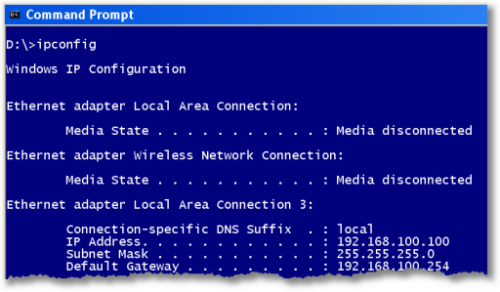
Tested the connection with my VPN client and RDP session worked decently.
So far I spotted only two weaknesses of this phone:
- daily “feeding” is almost unavoidable, unless you turn off data and work in plain old GSM mode
- WiFi (WPA2) connection to my home based Linksys WRT54GL router is troublesome and unreliable. Based on what I found on the net I’m not alone. HTC will have to patch this puppy.
Overall, I can say that I’m a happy camper so far and I’m really impressed with what HTC delivered. It’ll keep me busy for the next few weeks, which is unusual because most of the time my gadgets come and go in a day or two.
Some useful references that I found on the net so far:
[1] Android SDK
[2] Using DDMS to take screenshots from HTC phone (among other things)
[3] HTC Sync Upgrade for Hero
[4] Applications for Android
[5] Testing Android user interface with Live CD

 dbaportal.eu
You must be logged in to post a comment.