Blog Archives
Oracle 32-bit ODBC on Windows 7 x64
After I prepared my new Windows 7 Enterprise x64 workstation with a bunch of 64-bit Oracle software, I also needed connectivity to Oracle from various 32-bit software. So, I downloaded and installed the latest and greatest 32-bit Oracle11g instant client (11.2.0.2.0) from OTN with all the goodies, including ODBC driver that I need for troubleshooting support issues of our MS Access 2003/2007/2010 users.
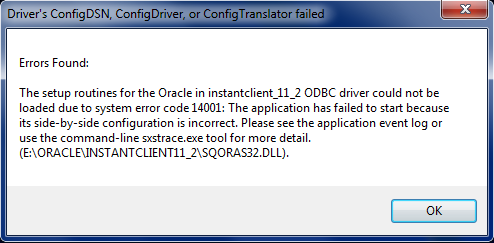
I opened 32-bit ODBC administrator (Windows\SysWOW64\odbcad32.exe) and when I tried to add System DSN with instanclient 11.2 driver I was stopped with the error:
The setup routines for the Oracle in instantclient_11_2 ODBC driver could not be loaded due to system error code 14001.
as shown below :

followed by instruction to check the Event log:
and so I did…

The “Microsoft.VC80.MFC” part of the error message in Event Log was saying that some C++ redistributable libraries were missing. With some trial and miss I found out that I need to install 32-bit Microsoft C++ 2005 SP1 Redistributable Package (x86) on my Windows 7 x64.
I downloaded “Microsoft Visual C++ 2005 SP1 Redistributable Package (x86)” from Microsoft Download Center:

Notice the match of version numbers of libraries as shown on the last two pictures (8.0.50727.762)!
After I installed 32-bit C++ 2005 libraries on my Windows7 x64 workstation I was able to use 32-bit ODBC driver with my Instant client 11g installation.
Installing OracleXE 11.2 on OpenSUSE 11.4
Until now, I was trying to avoid SUSE/OpenSUSE Linux distros for reasons that goes beyond technology. I must say OpenSUSE pleasantly surprised me with the installation process. Little that I can complain about. Of course, installing Oracle XE 11.2 (beta) was my first post-installation step:
$ cd Downloads
$ wget  http://ftp.novell.com/partners/oracle/sles-11/orarun-1.9-172.20.21.54.x86_64.rpm

[->Download Oracle XE 11.2 Beta into "Downloads" directory from otn.oracle.com.]

$ unzip linux.x64_11gR2_OracleXE.zip

Check if bc (GNU command line calculator) is installed and if it's not install it:

$ sudo zypper install bc

then it's as easy as:

$ sudo zypper install oracle-xe-11.2.0-0.5.x86_64.rpm
$ sudo zypper install orarun-1.9-172.20.21.54.x86_64.rpm
$ su -
# /etc/init.d/oracle-xe configure
# exit
$ nano $HOME/.bashrc

and add line at the end of file:

. /u01/app/oracle/product/11.2.0/xe/bin/oracle_env.sh
Optionally, you can configure Apex. You’ll find shorcut “Get Started with Oracle Database 11g Express edition” in Application panel. Don’t forget to turn off firewall (or better yet configure firewall to allow access to 8080 or whatever port you chose).
If you want to add your account to dba group that’ll allow you to connect “/ as sysdba” without a password, then:
$ su -
# usermod -a -G dba alesk
Installing OracleXE 11.2 beta on OEL 6.1
[root@OEL6 Downloads]# uname -r
2.6.32-100.34.1.el6uek.x86_64
After I downloaded and unzipped OracleXE 11.2 Beta, I run:
[root@OEL6 Downloads]# rpm -Uvh oracle-xe-11.2.0-0.5.x86_64.rpm
Preparing...                ########################################### [100%]
error: "net.bridge.bridge-nf-call-ip6tables" is an unknown key
error: "net.bridge.bridge-nf-call-iptables" is an unknown key
error: "net.bridge.bridge-nf-call-arptables" is an unknown key
error: %pre(oracle-xe-11.2.0-0.5.x86_64) scriptlet failed, exit status 255
error:   install: %pre scriptlet failed (2), skipping oracle-xe-11.2.0-0.5
Google helped me find a simple workaround, if you run the same command again it’ll install OracleXE without error:
[root@OEL6 Downloads]# rpm -Uvh oracle-xe-11.2.0-0.5.x86_64.rpm
Preparing...                ########################################### [100%]
   1:oracle-xe              ########################################### [100%]
Executing post-install steps...
You must run '/etc/init.d/oracle-xe configure' as the root user to configure the database.
Oracle HTTP Server 11g
While preparing a “reference” Oracle server for my client I decided that I would try to replace Oracle HTTP Server that was once shipped on “Oracle10g Companion Disk”, with Oracle HTTP version 11g (for Windows x64).
In the expected spirit of “viva la bloatware”, I submitted to the said fact that Oracle HTTP server 10g with “mere” 435MB in Oracle Home, will now take 1.9GB. Oracle never fails to disappoint me with their “engineering” abilities.
Make a little experiment: compare 1.14 GB installation “media” from Oracle with mere 6.2 MB MSI installer from Apache website and try not to cry at the same time. And please don’t give me standard BS: “you’re comparing apples to oranges”….no, no, no, I’m actually comparing apples to melons ;-). Enough said, back to technicalities….
Steps that I followed installing OracleHTTP 11.1.1.2.0 on Windows Server 2008 R2-SP1:
1) downloaded Oracle Fusion Middleware Web Tier Utilities 11g (11.1.1.2.0) for Microsoft Windows (x64) from OTN
At the time of this writing the description of “OFM Web Tier Utilities” looks like this:

2) Unzip archive in some temporary directory and start installer from Disk1
3) Installation is as usual guided by OUI:
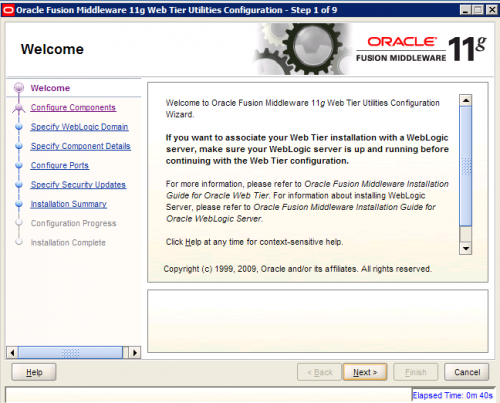
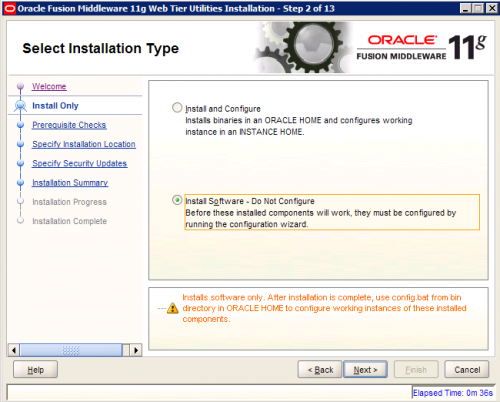
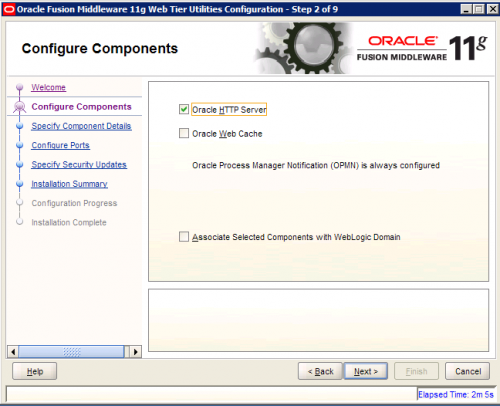
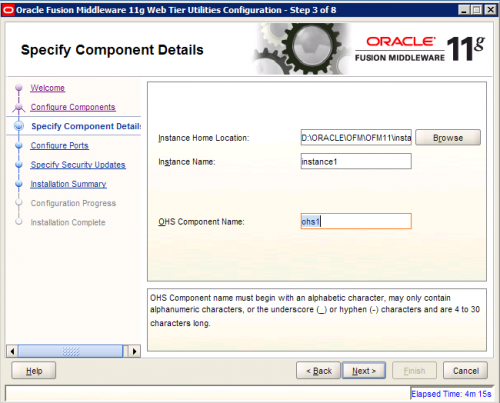
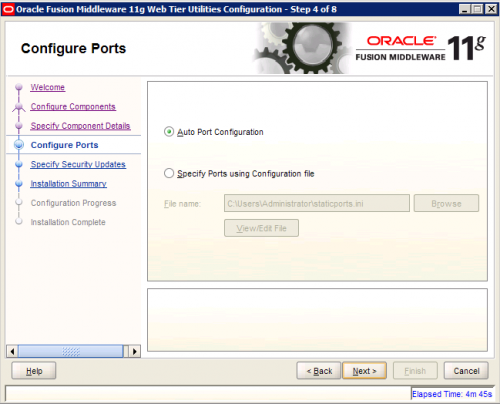
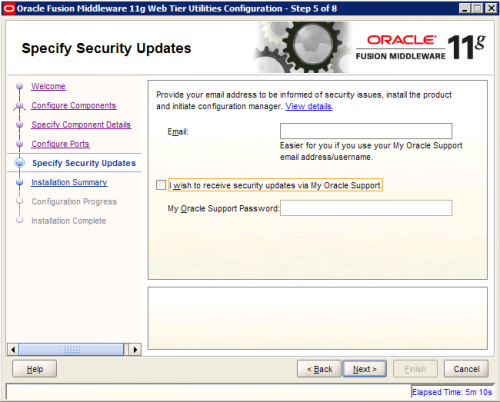
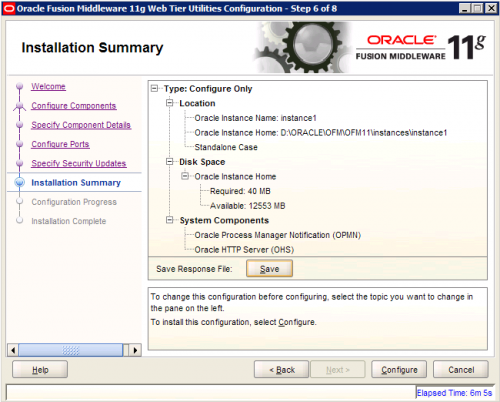
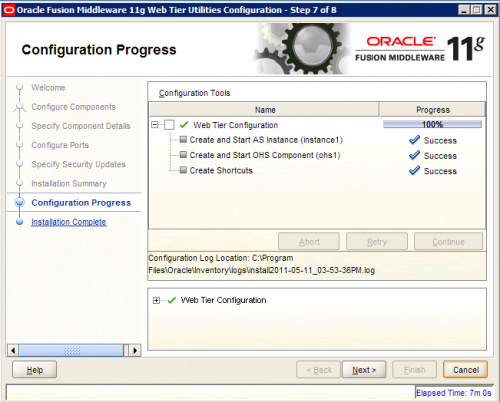
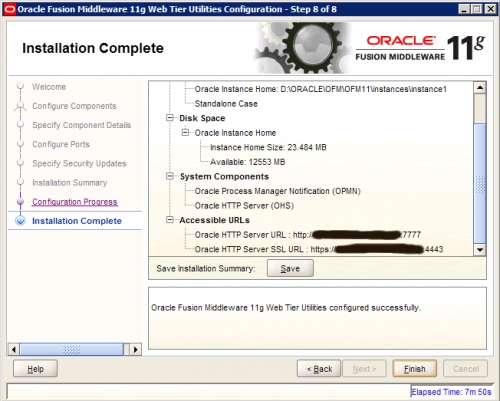
4) Configuration Web Tier Instance
At any time you can configure another Web Tier Instance by following instructions in OUI, you’ll find the shortcut in Oracle Web Tier 11g – Home1 :
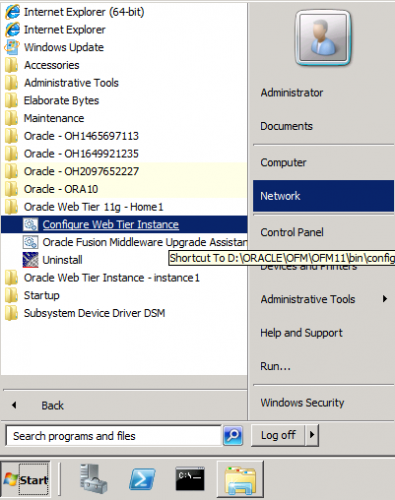
Perhaps you noticed on the last screenshot “Oracle – OH1465697113”, I’m not sure if this is part of Oracle standard “engineering” effort, or simply a bug. In either case the crap like this should not be there – I hope Oracle will fix this.
After you configured and started OHS instance, you can check with Task Manager that apache.exe is indeed running as 64-bit application:
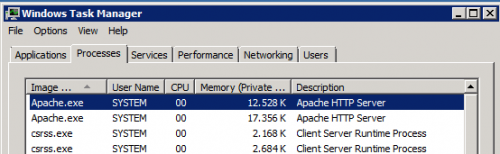
Since Oracle HTTP server is badly needed by one of our application and migrating to 64-bit Oracle HTTP server was only a question of time, I guess I’ll have to accept the fact that this “engineering bloatware” from Oracle is now (sadly) part of our infrastructure. Sometimes I wonder if Oracle programmers are perhaps paid by gigabytes that they produce!?
Windows bundle patch – regression tested from 10.2.0.4 onwards
I just finished reading “preamble” from MOS note “161549.1 1Oracle Database Server and Networking Patches for Microsoft Platform”, specifically:
Quote:
Patch sets increment the 4th digit of the version number e.g. 10.2.0.1.0 to 10.2.0.4.0, these patch sets are fully regression tested in the same way that the base release is (i.e. 10.2.0.1.0). Customers are encouraged to apply these fixes.
and further…
Quote:
From 10.2.0.4 onwards each Windows bundled patch goes through full regression testing because it includes a large number of dependent fixes, CPU, DST and PSU. Oracle recommends all customers apply the latest bundle as soon as it is convenient irrespective of encountering a specific problem resolved by the bundle.
…which I found reassuring and amusing at the same time.

 dbaportal.eu
You must be logged in to post a comment.